
What's inside
- Best NAS Enclosure Without Hard Drives: Quick Comparison Table
- Why a NAS Enclosure Without Hard Drives Makes Sense
- Best NAS Enclosure Without Hard Drives Reviewed
- Buying Guide: How to Choose the Best NAS Enclosure Without Hard Drives
- How to Set Up a NAS Enclosure Without Hard Drives
- Which Best NAS Enclosure Without Hard Drives Should You Buy?
- Frequently Asked Questions About the Best NAS Enclosure Without Hard Drives
As an Amazon Associate I earn from qualifying purchases. This post may contain affiliate links at no extra cost to you.
The best NAS enclosure without hard drives is the one that gives you the number of bays you need, a fast processor, enough RAM for your apps, and a price that fits your budget, without forcing you to buy drives you do not want. A NAS enclosure without hard drives, also called a diskless NAS, is a network attached storage box that comes without drives installed, so you can choose your own hard drives or SSDs, reuse drives you already own, and upgrade storage later without replacing the whole enclosure.
For most home users, a NAS enclosure without hard drives with 2 to 4 bays, a quad-core processor, 4GB of RAM, 2.5GbE or faster networking, and a typical price of $300 to $600, is a good starting point. That combination gives you enough storage for photos, videos, and backups, lets you run apps like Plex or Docker, and keeps your network fast.
At technicalbud.com, we focus on tech gadgets. For this guide to the best NAS enclosure without hard drives in 2026, we compared current diskless NAS enclosures that are widely sold, designed for home and small office storage, and suitable for a user who wants to choose their own drives. We looked at bays, processor, RAM, networking, drive support, and price. Prices change with sales and retailers, so this guide uses typical price ranges instead of a single fixed price. Bays, processor, RAM, and networking figures are manufacturer listings, and real performance depends on your drives, your network, and your apps.
Storage note: a NAS is not a backup by itself. Use a RAID setup for drive failure protection, and keep a separate backup of important files on another device or in the cloud. Always follow the manufacturer’s instructions for installing drives and setting up your NAS.
Our Top Picks
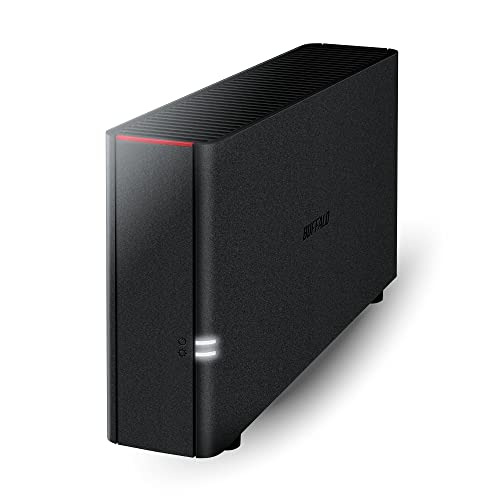 BUFFALO LinkStation 210 2TB 1-Bay NAS Network Attached2TB (1x2TB)9.45 x 3.31 x 8.67 inches2.43 poundsCheck on Amazon
Best NAS Enclosure Without Hard Drives: Quick Comparison Table
The table below compares seven NAS enclosures without hard drives. Bays is the number of bays, where given. Processor is the processor, where given. RAM is the RAM, where given. Networking is the networking, where given. Drive support is the drive support, where given. Best for is a note on what the enclosure is best for, such as home storage, where given. Price is the typical range, and rating is our editorial score based on bays, processor, networking, and value for diskless NAS use.
| NAS Enclosure Without Hard Drives | Bays | Processor | RAM | Networking | Drive Support | Best For | Typical Price Range | Our Rating |
|---|---|---|---|---|---|---|---|---|
| Synology DS923+ Diskless | 4 bay | AMD Ryzen R1600 | 4GB DDR4 | 2x 1GbE, 10GbE upgrade | 3.5 in SATA, M.2 NVMe | Best overall, NAS without drives | $500 – $600 | 4.9 / 5 |
| Synology DS423+ Diskless | 4 bay | Intel Celeron J4125 | 2GB DDR4 | 2x 1GbE | 3.5 in SATA, M.2 NVMe | Best for Synology, DS423+ | $400 – $500 | 4.8 / 5 |
| QNAP TS-464 Diskless | 4 bay | Intel Celeron N5095 | 8GB DDR4 | 2x 2.5GbE | 3.5 in SATA, M.2 NVMe | Best for QNAP, TS-464 | $500 – $600 | 4.8 / 5 |
| UGREEN DXP4800 Plus Diskless | 4 bay | Intel Pentium Gold 8505 | 8GB DDR5 | 10GbE, 2.5GbE | 3.5 in SATA, M.2 NVMe | Best for UGREEN, DXP4800 Plus | $500 – $600 | 4.8 / 5 |
| TerraMaster F4-423 Diskless | 4 bay | Intel Celeron N5095 | 4GB DDR4 | 2x 2.5GbE | 3.5 in SATA, M.2 NVMe | Best for TerraMaster, F4-423 | $400 – $500 | 4.7 / 5 |
| Synology DS224+ Diskless | 2 bay | Intel Celeron J4125 | 2GB DDR4 | 2x 1GbE | 3.5 in SATA | Best for Synology, 2 bay | $300 – $400 | 4.7 / 5 |
| QNAP TS-264 Diskless | 2 bay | Intel Celeron N5095 | 8GB DDR4 | 2x 2.5GbE | 3.5 in SATA, M.2 NVMe | Best budget, QNAP TS-264 | $300 – $400 | 4.6 / 5 |

CENMATE Aluminum 10 Bay Hard Drive Enclosure with Cooling Fan for 2.5“/3.5" SATA HDD/SSD with USB A/C 3.0, Support Hot Swappable, Tool-Free HDD Enclosure, DAS(NO RAID/NAS)
As an Amazon Associate we earn from qualifying purchases. Product prices and availability are accurate as of the date/time indicated.
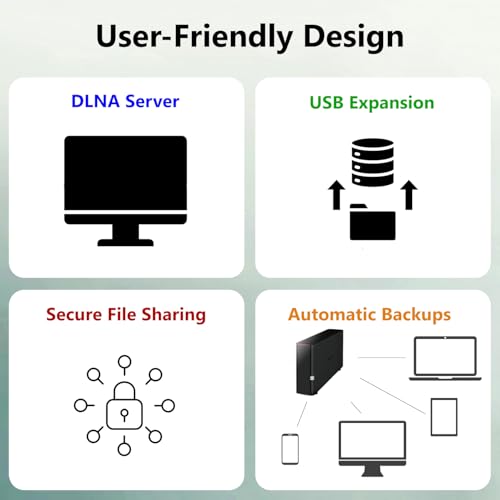
BUFFALO LinkStation 210 2TB 1-Bay NAS Network Attached Storage with HDD Hard Drives Included NAS Storage that Works as Home Cloud or Network Storage Device for Home
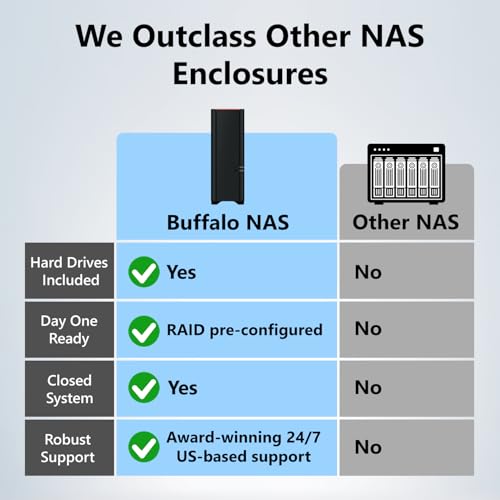



As an Amazon Associate we earn from qualifying purchases. Product prices and availability are accurate as of the date/time indicated.
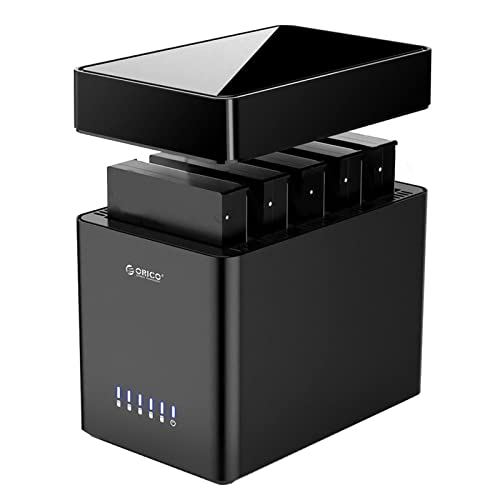
ORICO 5 Bay Hard Drive Enclosure Supports 2.5/3.5 inch Drives | Magnetic USB 3.0 to SATA HDD Docking Station Case with 12V/6.5A Power Adapter for Family Storage, Video Editing & Backup.
As an Amazon Associate we earn from qualifying purchases. Product prices and availability are accurate as of the date/time indicated.
Note: Bays, processor, and RAM figures are manufacturer listings, and a NAS enclosure that lists diskless may be sold with drives by some retailers. Always check the enclosure’s bays, processor, and RAM in the manual, and confirm the current price and whether drives are included with the retailer.
Why a NAS Enclosure Without Hard Drives Makes Sense
A NAS enclosure without hard drives makes sense for three reasons: choice, cost, and upgrades. Choice matters because you can choose your own drives, whether you want large hard drives for media, fast SSDs for apps, or a mix of both. A NAS sold with drives forces you to use the drives the manufacturer chose, which may not match your needs.
Cost matters because a diskless NAS is cheaper upfront than a NAS with drives, and you can reuse drives you already own, or buy drives on sale later. A NAS with drives may cost $200 to $400 more than the same enclosure without drives, depending on drive size.
Upgrades matter because a diskless NAS lets you start with 2 drives and add more later, or replace small drives with larger drives as your storage needs grow. A NAS with 4 bays gives you room to grow, without buying a new enclosure.
Best NAS Enclosure Without Hard Drives Reviewed
1. Synology DS923+ Diskless – Best NAS Enclosure Without Hard Drives Overall
The Synology DS923+ Diskless is our top pick because it offers 4 bays, an AMD Ryzen R1600 processor, 4GB of DDR4 RAM, 2x 1GbE networking with a 10GbE upgrade option, and support for 3.5 inch SATA drives and M.2 NVMe SSDs, for a typical price of $500 to $600. It has a powerful processor, a flexible design, and a design that is made for home and small office storage.
Synology designs the DS923+ with a focus on a powerful, flexible 4-bay NAS for home users. The AMD Ryzen processor is faster than a Celeron, the 4GB RAM can be expanded, and the 10GbE upgrade option lets you get faster networking later. The NAS is a good choice for a user who wants a Synology NAS, and who wants a powerful diskless enclosure.
The main limitation is that it does not include 2.5GbE by default, so you need an upgrade card for 10GbE. Choose the DS923+ if you want the best overall NAS enclosure without hard drives, you want a Synology NAS, and you have a budget of $500 to $600.
2. Synology DS423+ Diskless – Best NAS Enclosure Without Hard Drives for Synology DS423+
The Synology DS423+ Diskless is a NAS with 4 bays, an Intel Celeron J4125 processor, 2GB of DDR4 RAM, 2x 1GbE networking, and support for 3.5 inch SATA drives and M.2 NVMe SSDs, for a typical price of $400 to $500. It has a compact design, a Celeron processor, and a design that is made for home storage.
Synology designs the DS423+ with a focus on an affordable 4-bay NAS for home users who want Synology software. The Celeron J4125 is enough for file storage, backups, and Plex transcoding, and the 2GB RAM can be expanded. The NAS is a good choice for a user who wants a Synology NAS, and who wants a lower price than a DS923+.
The main limitation is RAM. At 2GB, it is less than a DS923+ at 4GB, though you can expand it. Choose the DS423+ if you want a Synology NAS, you want a 4-bay design, and you have a budget of $400 to $500.
3. QNAP TS-464 Diskless – Best NAS Enclosure Without Hard Drives for QNAP
The QNAP TS-464 Diskless is a NAS with 4 bays, an Intel Celeron N5095 processor, 8GB of DDR4 RAM, 2x 2.5GbE networking, and support for 3.5 inch SATA drives and M.2 NVMe SSDs, for a typical price of $500 to $600. It has 2.5GbE networking, 8GB RAM, and a design that is made for home and office storage.
QNAP designs the TS-464 with a focus on a fast, well-equipped 4-bay NAS for home users. The 2.5GbE networking is faster than 1GbE, the 8GB RAM is enough for Docker and virtual machines, and the N5095 processor is fast for its class. The NAS is a good choice for a user who wants a QNAP NAS, and who wants 2.5GbE networking.
The main limitation is software. QNAP software is powerful, but it may be more complex than Synology software for a beginner. Choose the TS-464 if you want a QNAP NAS, you want 2.5GbE, and you have a budget of $500 to $600.
4. UGREEN DXP4800 Plus Diskless – Best NAS Enclosure Without Hard Drives for UGREEN
The UGREEN DXP4800 Plus Diskless is a NAS with 4 bays, an Intel Pentium Gold 8505 processor, 8GB of DDR5 RAM, 10GbE and 2.5GbE networking, and support for 3.5 inch SATA drives and M.2 NVMe SSDs, for a typical price of $500 to $600. It has 10GbE networking, DDR5 RAM, and a design that is made for fast home storage.
UGREEN designs the DXP4800 Plus with a focus on a fast, modern 4-bay NAS with 10GbE. The 10GbE port gives you very fast networking, the Pentium Gold processor is fast, and the 8GB DDR5 RAM is modern. The NAS is a good choice for a user who wants a UGREEN NAS, and who wants 10GbE networking without an upgrade card.
The main limitation is software maturity. UGREEN software is newer than Synology or QNAP software, though it is improving. Choose the DXP4800 Plus if you want a UGREEN NAS, you want 10GbE, and you have a budget of $500 to $600.
5. TerraMaster F4-423 Diskless – Best NAS Enclosure Without Hard Drives for TerraMaster
The TerraMaster F4-423 Diskless is a NAS with 4 bays, an Intel Celeron N5095 processor, 4GB of DDR4 RAM, 2x 2.5GbE networking, and support for 3.5 inch SATA drives and M.2 NVMe SSDs, for a typical price of $400 to $500. It has 2.5GbE networking, a N5095 processor, and a design that is made for home storage.
TerraMaster designs the F4-423 with a focus on an affordable 4-bay NAS with 2.5GbE. The N5095 processor is fast, the 2.5GbE networking is faster than 1GbE, and the price of $400 to $500 is good for a 4-bay NAS. The NAS is a good choice for a user who wants a TerraMaster NAS, and who wants a low price for 2.5GbE.
The main limitation is software. TerraMaster software is less polished than Synology software, though it is functional for file storage and backups. Choose the F4-423 if you want a TerraMaster NAS, you want 2.5GbE, and you have a budget of $400 to $500.
6. Synology DS224+ Diskless – Best NAS Enclosure Without Hard Drives for 2 Bay
The Synology DS224+ Diskless is a NAS with 2 bays, an Intel Celeron J4125 processor, 2GB of DDR4 RAM, 2x 1GbE networking, and support for 3.5 inch SATA drives, for a typical price of $300 to $400. It has a compact design, a Celeron processor, and a design that is made for home storage and backups.
Synology designs the DS224+ with a focus on a simple, affordable 2-bay NAS for home users. The 2 bays are enough for a RAID 1 mirror, the Celeron processor is enough for file storage, and the price of $300 to $400 is low. The NAS is a good choice for a user who wants a Synology NAS, and who only needs 2 bays.
The main limitation is bays. At 2 bays, it has less room to grow than a 4-bay NAS, so you may need to replace drives with larger ones later. Choose the DS224+ if you want a Synology NAS, you want a 2-bay design, and you have a budget of $300 to $400.
7. QNAP TS-264 Diskless – Best Budget NAS Enclosure Without Hard Drives
The QNAP TS-264 Diskless is a NAS with 2 bays, an Intel Celeron N5095 processor, 8GB of DDR4 RAM, 2x 2.5GbE networking, and support for 3.5 inch SATA drives and M.2 NVMe SSDs, for a typical price of $300 to $400. It has 2.5GbE networking, 8GB RAM, and a design that is made for home storage.
QNAP designs the TS-264 with a focus on a powerful 2-bay NAS at a low price. The N5095 processor is fast, the 8GB RAM is generous, and the 2.5GbE networking is fast. The NAS is a good choice for a user who wants a QNAP NAS, and who wants the lowest price for a powerful 2-bay NAS.
The main limitation is bays. At 2 bays, it has less storage capacity than a 4-bay NAS, though it is enough for most home users. Choose the TS-264 if you want the lowest price for a powerful NAS, you want a QNAP NAS, and you have a budget of $300 to $400.
Buying Guide: How to Choose the Best NAS Enclosure Without Hard Drives
Before you buy, think about how much storage you need, what apps you want to run, how fast your network is, what drives you want to use, and how much you want to spend. A NAS that is perfect for photo backups may not be enough for Plex transcoding, and a NAS that is perfect for a 1GbE network may be slow on a 10GbE network. The six points below cover the decisions that matter most for a NAS enclosure without hard drives.
1. Bays: 2 Bay vs 4 Bay, and Your Storage Needs
Bays is the first decision. Bays is the number of drive slots in a NAS, and it affects how much storage you can have and what RAID you can use. A 2-bay NAS, such as the Synology DS224+ or QNAP TS-264, is enough for a RAID 1 mirror with 2 drives, which protects you if one drive fails. A 4-bay NAS, such as the Synology DS923+ or QNAP TS-464, lets you use RAID 5 with 3 or 4 drives, which gives you more storage and protection.
Choose a 2-bay NAS if you need up to 20TB of storage, you want a low price, and you do not need a lot of room to grow. Choose a 4-bay NAS if you need more than 20TB, you want RAID 5, or you want room to add drives later. Check the NAS bays in the manual, and choose a NAS with at least one spare bay for future growth.
2. Processor and RAM: Celeron vs Ryzen vs Pentium, and Your Apps
Processor and RAM are the second decision. Processor is the CPU that runs your NAS software and apps, and RAM is the memory that lets it run multiple apps at once. A Celeron processor, such as in the Synology DS423+ or QNAP TS-464, is enough for file storage, backups, and light Plex use. An AMD Ryzen processor, such as in the Synology DS923+, is faster for Docker and virtual machines. A Pentium Gold processor, such as in the UGREEN DXP4800 Plus, is fast for its class.
Choose a Celeron NAS with 2GB RAM if you only need file storage and backups. Choose a NAS with 4GB to 8GB RAM if you want to run Plex, Docker, or virtual machines. Check the processor and RAM in the manual, and choose a NAS with RAM you can expand later if you plan to run more apps.
3. Networking: 1GbE vs 2.5GbE vs 10GbE, and Your Network Speed
Networking is the third decision. Networking is how fast your NAS can transfer files to your computer, and it is measured in gigabits per second. A 1GbE port, such as in the Synology DS423+ and DS224+, gives you about 125 MB/s, which is enough for most home users. A 2.5GbE port, such as in the QNAP TS-464 and TerraMaster F4-423, gives you about 300 MB/s, which is faster for large files. A 10GbE port, such as in the UGREEN DXP4800 Plus, gives you about 1250 MB/s, which is very fast for video editing.
Choose a 1GbE NAS if you have a 1GbE network, you only transfer small files, and you want a low price. Choose a 2.5GbE NAS if you have a 2.5GbE switch or router, and you transfer large files. Choose a 10GbE NAS if you edit video from your NAS, or you have a 10GbE network. Check your network speed before you buy, because a 10GbE NAS will not be faster on a 1GbE network.
4. Drive Support: SATA vs NVMe, and Your Drives
Drive support is the fourth decision. Drive support is what types of drives a NAS can use, including 3.5 inch SATA hard drives, 2.5 inch SATA SSDs, and M.2 NVMe SSDs. Most NAS enclosures support 3.5 inch SATA hard drives for large storage, and many also support M.2 NVMe SSDs for caching, which speeds up file access. A NAS that supports M.2 NVMe, such as the Synology DS923+ or QNAP TS-464, lets you add an SSD cache for faster performance.
Choose a NAS that supports the drives you already own, or the drives you plan to buy. If you want fast performance, choose a NAS with M.2 NVMe support for caching. Check the drive compatibility list in the manual, because some NAS makers only support certain drives for full warranty.
5. Software: Synology DSM vs QNAP QTS vs UGREEN UGOS, and Ease of Use
Software is the fifth decision. Software is the operating system that runs on your NAS, and it affects how easy it is to set up, how many apps you can run, and how well it is supported. Synology DSM is known for ease of use and a large app store, QNAP QTS is known for power and flexibility, UGREEN UGOS is newer but improving, and TerraMaster TOS is functional for basic storage.
Choose Synology DSM if you want the easiest setup, you are a beginner, and you want a large app store. Choose QNAP QTS if you want more power, you are comfortable with a complex interface, and you want 2.5GbE. Choose UGREEN UGOS if you want 10GbE at a low price, and you are willing to use newer software. Check the software features in the manual, and read reviews before you buy.
6. Price, Total Cost, and Choosing a NAS on a Budget
Price ranges in this guide run from about $300 to $600 for a NAS enclosure without hard drives, depending on bays, processor, RAM, and networking. A budget NAS at $300 to $400, such as the Synology DS224+ or QNAP TS-264, is enough for most home users who want a 2-bay NAS for backups and file storage. A mid-price NAS at $400 to $500, such as the Synology DS423+ or TerraMaster F4-423, offers a 4-bay design. A premium NAS at $500 to $600, such as the Synology DS923+, QNAP TS-464, or UGREEN DXP4800 Plus, offers a faster processor, more RAM, or faster networking.
Consider total cost as well as price. A NAS enclosure that costs $400 and needs $300 of drives may cost $700 in total, while a NAS that costs $500 and needs $300 of drives may cost $800 in total. Budget for a NAS enclosure, and if you need it, drives, a network switch, and a UPS for power protection, not just an enclosure. Do not buy the cheapest NAS if it does not have enough bays for your storage needs, and do not buy the most expensive NAS if you only need file storage. A NAS that matches your storage needs, your network speed, and your budget will help you store files more reliably than a NAS that is cheap but too small, or expensive but too complex for your needs.
How to Set Up a NAS Enclosure Without Hard Drives
Setting up a NAS enclosure without hard drives starts with installing your drives in the bays, following the manufacturer’s instructions, and connecting your NAS to your router with an Ethernet cable. Turn on your NAS, find it on your network using the manufacturer’s software, and follow the setup wizard to create a storage pool and a RAID volume.
Create a shared folder for your files, set up a backup schedule, and enable a firewall and strong password. Test your NAS by copying a file to it, and check that you can access it from your computer and phone. Keep your NAS software updated, and back up important files to another device or the cloud.
Which Best NAS Enclosure Without Hard Drives Should You Buy?
If you want the best NAS enclosure without hard drives, buy the Synology DS923+ Diskless. It costs $500 to $600, it offers 4 bays, an AMD Ryzen R1600 processor, and 4GB of DDR4 RAM, which is the best balance for most home users.
If you want a Synology 4-bay NAS at a lower price, buy the Synology DS423+ Diskless. If you want a QNAP NAS, buy the QNAP TS-464 Diskless or the QNAP TS-264 Diskless. If you want a UGREEN NAS with 10GbE, buy the UGREEN DXP4800 Plus Diskless. If you want a TerraMaster NAS, buy the TerraMaster F4-423 Diskless. If you want a Synology 2-bay NAS, buy the Synology DS224+ Diskless.
All seven enclosures in this guide are currently sold, sold without hard drives, and suitable for a user who wants to choose their own drives for home and small office storage. Pick the one that matches your bays, your processor and RAM needs, your network speed, and your budget, and always keep a separate backup of important files.
Disclosure: technicalbud.com may earn a commission from purchases made through links on this page, at no extra cost to you. Prices listed are typical ranges and can vary by retailer and sale. Bays, processor, RAM, and networking figures are manufacturer claims and can vary by model. A NAS is not a backup by itself; keep a separate backup of important files.
Frequently Asked Questions About the Best NAS Enclosure Without Hard Drives
What is the best NAS enclosure without hard drives?
What is the best NAS enclosure without hard drives? In most cases, the Synology DS923+ Diskless is best overall, because it costs $500 to $600, it offers 4 bays, an AMD Ryzen R1600 processor, and 4GB of DDR4 RAM. The QNAP TS-464 is best if you want 2.5GbE networking, while the Synology DS224+ is best if you want a low price for a 2-bay NAS.
Can I use any hard drive in a diskless NAS?
Can you use any hard drive in a diskless NAS? In most cases, you can use most 3.5 inch SATA hard drives in a diskless NAS, but you should check the NAS maker’s compatibility list before you buy, because some NAS makers only support certain drives for full warranty and performance. Use NAS-rated drives, such as WD Red or Seagate IronWolf, for reliability, and do not use desktop drives for 24/7 NAS use if the manual recommends NAS drives.
How many bays do I need for a NAS without hard drives?
How many bays do you need for a NAS without hard drives? In most cases, you need 2 bays if you need up to 20TB of storage and you want a RAID 1 mirror, and 4 bays if you need more than 20TB, you want RAID 5, or you want room to add drives later. A 2-bay NAS is enough for most home users, while a 4-bay NAS is better if you have a lot of photos, videos, or backups.
Is a diskless NAS cheaper than a NAS with drives?
Is a diskless NAS cheaper than a NAS with drives? In most cases, yes, a diskless NAS is cheaper upfront than the same NAS with drives, because you are not paying for drives you may not need, and you can reuse drives you already own or buy drives on sale later. A NAS with drives may cost $200 to $400 more than the same enclosure without drives, depending on drive size. Budget for drives separately, and choose drives that match your storage needs.
Related guides
- Best AAA Batteries for Office Remotes in 2026: AAA Batteries for Office Remotes
- Best Budget Tablet for Work Under 100 in 2026: Budget Tablets for Work Under $100, Office Work, and Productivity
- Best Gimbal for Office Vlogging in 2026: 7 Gimbals for Office Vlogging That Keep Your Video Smooth, Stable, and Professional in the Office
- Best Budget NAS Dust Filter for Maintenance in 2026: 7 Budget NAS Dust Filters for Maintenance With Clear Airflow, Simple Install, and Easy Use for NAS
More from Amazon
Programs that pair well with the guide above. Offers and eligibility are set by Amazon and may change.
Free shipping on eligible items, Prime Video and more. Eligible new members can start with a free trial.
Start a Prime free trialAd-free music streaming. Eligible new subscribers can start with a free trial.
Try Music Unlimited freeA Prime membership for ages 18-24 with a trial period. Eligibility is set by Amazon.
See Prime for Young AdultsAudiobooks and podcasts to listen to on the go. Eligible new members can start with a free trial.
Try Audible freeAs an Amazon Associate we earn from qualifying purchases.

Write Your Review
No reviews yet. Be the first to share your experience!