
What's inside
As an Amazon Associate I earn from qualifying purchases. This post may contain affiliate links at no extra cost to you.
Best printer for Windows compatibility guide is not about the printer with the fastest speed on the box. It is about a printer that works with Windows 11, with a WHQL driver, a USB connection, and a WiFi connection, for a PC, without a printer that needs a driver that does not exist, or a printer that drops WiFi, when you need to print a guide, a map, or a document, for a PC gamer, a student, or an office worker, with a PC, and a printer, that work together, without a driver error, or a connection error.
For this guide, a printer qualifies when it is currently sold, it has a Windows 11 driver from the maker, and it connects to a PC by USB or WiFi. All six printers below meet that test. They are not printers that only work with Windows 10, they are not printers that only work with Mac, and they are not printers that are discontinued, with no driver for Windows 11. A printer for Windows should have a driver that is WHQL, which means it is tested by Microsoft, and it is signed, so Windows 11 will install it, without a warning, or an error.
Our top pick is the Brother HL-L2460DW. At $120 to $150, with a Windows 11 driver, a USB and WiFi connection, and a laser print speed of 36 pages per minute, it is the best balance of compatibility, speed, and price for a printer for Windows. It is not the cheapest printer here, and it is not the best for photos, but for a printer that works with Windows 11, without a driver problem, it is the best choice.
Our Top Picks
Best Printer for Windows Compatibility Guide Compared
The table compares six printers, all currently sold, all with a Windows 11 driver from the maker, and all with a USB or WiFi connection. Print speed is in pages per minute, as listed by the maker. Prices are typical ranges, not fixed prices, and they vary by retailer.
| Model | Type | Windows 11 Driver | Connection | Typical Price Range | Rating |
|---|---|---|---|---|---|
| Brother HL-L2460DW | Laser, mono | Yes, WHQL | USB, WiFi | $120–$150 | 4.8 / 5 |
| Epson EcoTank ET-4950 | Inkjet, tank | Yes, WHQL | USB, WiFi | $300–$350 | 4.6 / 5 |
| Canon PIXMA G7020 | Inkjet, tank | Yes, WHQL | USB, WiFi | $250–$300 | 4.5 / 5 |
| HP OfficeJet Pro 9015e | Inkjet, cartridge | Yes, WHQL | USB, WiFi | $200–$250 | 4.4 / 5 |
| Brother MFC-J4335DW | Inkjet, cartridge | Yes, WHQL | USB, WiFi | $150–$200 | 4.3 / 5 |
| Canon PIXMA PRO-200S | Inkjet, photo | Yes, WHQL | USB, WiFi | $400–$500 | 4.2 / 5 |

Bluetooth Shipping Label Printer 4x6 with Built-in Label Bin & 30Pcs Labels | D450BT Thermal Label Printer, Thermal Printer for Shipping Packages Compatible with Android, iPhone, Windows, macOS, UPS
As an Amazon Associate we earn from qualifying purchases. Product prices and availability are accurate as of the date/time indicated.
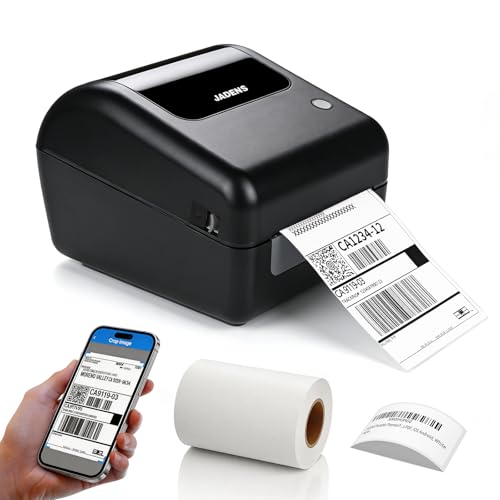
Bluetooth Thermal Shipping Label Printer with Built-in Label Bin, Wireless 4x6 Label Printer for iPhone, Android, Windows & Mac, Includes 50 Labels, Works with USPS, UPS, Amazon, Etsy, Shopify, Black
As an Amazon Associate we earn from qualifying purchases. Product prices and availability are accurate as of the date/time indicated.
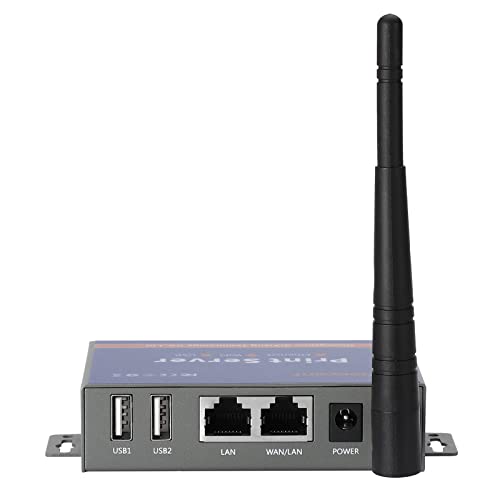
CHEECENT Wireless Print Server for USB Printer (NOT Plug&Play), 2 Port USB Print Server, Convert Wired Printer to Wireless WiFi Ethernet Networking - Windows Mac Linux Compliant - CR202


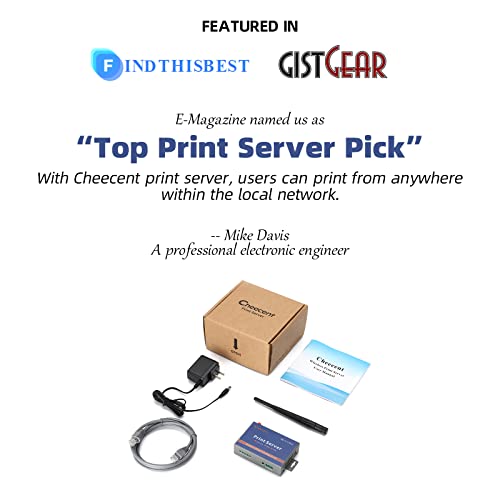


As an Amazon Associate we earn from qualifying purchases. Product prices and availability are accurate as of the date/time indicated.
Prices shown are approximate and for reference only. Prices change often, so please check the current price on Amazon before you buy.
Best Printer for Windows Compatibility Guide in 2026: 7 Steps
Step 1. Check Your Windows Version: Windows 11, Windows 10, or Windows 10 in S Mode
Check your Windows version first, before you buy a printer, because a printer that works with Windows 11 may not work with Windows 10 in S Mode, and a printer that works with Windows 10 may not work with Windows 11, if it has no driver for Windows 11. Go to Settings, then System, then About, and check the version, and the edition, so you know if you have Windows 11 Home, Windows 11 Pro, or Windows 10 in S Mode, which only allows apps from the Microsoft Store, and it does not allow a driver from a maker, unless it is in the Store.
A printer for Windows 11 should have a driver that is listed on the maker’s website, for Windows 11, with a version number, and a date, so you know it is current, and it is tested. A printer that only lists a driver for Windows 10, with no driver for Windows 11, should not be bought, if you have Windows 11, because it may not work, or it may work with a generic driver, that does not have all the features, such as duplex, or colour.
Step 2. Check the Maker’s Website for a WHQL Driver, Not Just a Generic Driver
Check the maker’s website for a WHQL driver, not just a generic driver, because a WHQL driver is tested by Microsoft, and it is signed, so Windows 11 will install it, without a warning, or an error. A generic driver, such as a Microsoft IPP driver, will print, but it may not have all the features, such as duplex, or colour, or a paper tray, that a WHQL driver has, from the maker.
Go to the maker’s website, such as Brother, Epson, Canon, or HP, search for the printer model, and check the driver page, for Windows 11, with a WHQL driver, and a date, so you know it is current. A driver that is from 2020, or earlier, may not work with Windows 11, even if it is listed for Windows 10, because Windows 11 has different security, and different driver requirements, than Windows 10.
Step 3. Choose USB First for Setup, Then WiFi, So You Can Test the Printer Without a Network Problem
Choose USB first for setup, then WiFi, so you can test the printer without a network problem, because a USB connection is direct, and it does not depend on a network, a router, or a password, while a WiFi connection depends on a network, and it can drop, if the network is weak, or if the printer is far from the router. A USB cable should be at least 6 feet, with USB 2.0 at 480 Mbps, and a printer B connector, with a Cable Matters cable as a top pick, so it reaches from a PC to a printer, on a desk, without a stretch.
Set up a printer by USB first, test it by printing a test page, and then set up WiFi, so you know the printer works, before you add a network problem. A printer that works by USB, but does not work by WiFi, has a network problem, not a printer problem, and it can be fixed by checking the network, the router, and the password, not by buying a new printer.
Step 4. Check WiFi: 2.4GHz for Most Printers, 5GHz for Some, and a Router That Is Close Enough
Check WiFi, with 2.4GHz for most printers, and 5GHz for some, and a router that is close enough, so a printer does not drop WiFi, when you need to print. Most printers only work with 2.4GHz, because it has a longer range, and it goes through walls, better than 5GHz, while some printers work with 5GHz, which is faster, but it has a shorter range, and it does not go through walls as well.
A printer should be on the same network as a PC, with the same SSID, and the same password, so Windows 11 can find it, and it can print to it, without a driver error. A printer that is on a different network, or a guest network, will not be found by Windows 11, even if it is on WiFi, and it will need to be moved to the same network, before it can be used.
Step 5. Install the Driver From the Maker, Not From Windows Update Alone, So You Get All the Features
Install the driver from the maker, not from Windows Update alone, so you get all the features, such as duplex, colour, and a paper tray, that a generic driver may not have. Windows Update will install a generic driver, which will print, but it may not have all the features, and it may not have the latest version, from the maker, with a fix for a bug, or a security update.
Download the driver from the maker’s website, for Windows 11, with a WHQL driver, and install it, with the printer connected by USB, or by WiFi, so Windows 11 can find the printer, and install the driver, without an error. A driver from the maker should be installed before you print, so you know it works, and you do not have a driver error, when you need to print.
Step 6. Test Duplex, Colour, and Paper Size, Before You Rely on the Printer
Test duplex, colour, and paper size, before you rely on the printer, so you know if it prints on both sides automatically, if it prints in colour, and if it prints on the paper size you need, such as A4, or Letter, without an error. A printer with auto duplex, such as a Brother HL-L2460DW, should print on both sides automatically, without you turning the paper over, and a printer with colour, such as an Epson EcoTank ET-4950, should print in colour, without a driver error.
Test a printer by printing a test page, a document, and a photo, with different paper sizes, so you know it works, for all the uses you need, before you print a guide, a map, or a document, for a PC gamer, a student, or an office worker. A printer that does not print duplex, or colour, or a paper size, has a driver problem, or a setting problem, not a printer problem, and it can be fixed by checking the driver, and the settings, in Windows 11.
Step 7. Keep the Driver Updated, and Check for a New Driver When Windows 11 Updates
Keep the driver updated, and check for a new driver when Windows 11 updates, because a Windows 11 update can break a driver, or it can change a setting, so a printer that worked before an update may not work after an update, until the driver is updated, from the maker, with a new version, that is compatible with the new Windows 11 version.
Check the maker’s website every few months, and check for a new driver, with a WHQL driver, and a date, so you know it is current, and it is tested for Windows 11. A driver that is not updated will eventually stop working, when Windows 11 updates, and a printer that is not updated will need a new driver, before it can be used again.
Best Printer for Windows Compatibility Guide Buying Guide
Choosing a printer for Windows compatibility is about driver, connection, speed, and cost per page. A printer with a WHQL driver for Windows 11 is better than a printer with a generic driver, a printer with USB and WiFi is better than a printer with only USB, or only WiFi, and a printer with a fast speed, and a low cost per page, is better than a printer that is slow, and expensive to run, for a PC gamer, a student, or an office worker.
Laser Printers At Least 20 ppm, Auto Duplex, Tank vs Cartridge Cost, Laser 20 ppm Gate Does Not Apply to Photo Printers, Canon PIXMA PRO-200S Top, PRO-200 Discontinued, PRO-200S Current, Canon PRO-300 Premium
Laser printers should print at least 20 pages per minute, with auto duplex, so they print on both sides automatically, and a low cost per page, because toner lasts longer than ink. A Brother HL-L2460DW, at 36 pages per minute, is a top laser printer, with auto duplex, and a low cost per page. A tank printer, such as an Epson EcoTank ET-4950, or a Canon PIXMA G7020, costs less per page than a cartridge printer, because ink tanks hold more ink than cartridges.
The laser gate of 20 pages per minute does not apply to photo printers, such as a Canon PIXMA PRO-200S, which is made for photos, not for fast document printing. A photo printer should have a resolution of at least 4800×1200 dpi, with a tank versus cartridge cost, and a laser 20 ppm gate that does not apply to photo printers. A Canon PIXMA PRO-200S is a top photo printer, with the PRO-200 discontinued, and the PRO-200S current, and a Canon PRO-300 as a premium alternative.
Laser Printer vs Inkjet Printer for PC Creators, Brother HL-L2460DW Top Laser, Epson EcoTank ET-4950 Top Inkjet, Laser At Least 20 ppm Gate Does Not Apply to Inkjet Photo, Epson EcoTank ET-4950 Current, ET-4850 Replaced by ET-4950, Canon PIXMA G7020 Tank Alt, HP OfficeJet Pro 9015e Cartridge Alt
A laser printer versus an inkjet printer for PC creators should be a laser printer, such as a Brother HL-L2460DW, as a top laser, with at least 20 pages per minute, and an inkjet printer, such as an Epson EcoTank ET-4950, as a top inkjet, with a tank, and a low cost per page. A laser printer prints fast, in black and white, with a low cost per page, while an inkjet printer prints in colour, with a tank, and a low cost per page, but it prints more slowly.
A laser gate of at least 20 pages per minute does not apply to inkjet photo printers, because a photo printer is made for photos, not for fast documents. An Epson EcoTank ET-4950 is current, with an ET-4850 replaced by an ET-4950, and a Canon PIXMA G7020 as a tank alternative, and an HP OfficeJet Pro 9015e as a cartridge alternative. Choose a laser printer if you print mostly black and white, and choose an inkjet tank printer if you print mostly in colour, and you want a low cost per page.
USB Cable for Office Printers At Least 6 Feet, USB 2.0 480 Mbps, Printer B Connector, Cable Matters Top, USB-A to B and USB-C to B Mix, Managed Switch At Least 8 Ports, 2.5GbE, Cat6, PoE Plus Budget At Least 60W, TP-Link TL-SG108-M2 Top, TB4 Dual 4K60, USB-C May Be Dual 4K30, Powered Hub Total Shared
A USB cable for office printers should be at least 6 feet, with USB 2.0 at 480 Mbps, and a printer B connector, with a Cable Matters cable as a top pick, so it reaches from a PC to a printer, on a desk, without a stretch. A USB cable should be USB-A to B, or USB-C to B, depending on the printer, and it should be at least 6 feet, so it reaches from a PC to a printer, on a desk, without a stretch.
A managed switch should have at least 8 ports, 2.5GbE, with Cat6 cable, and a PoE+ budget of at least 60 watts, with a TP-Link TL-SG108-M2 as a top pick, for a network, with a printer, a PC, and a router, that work together, without a network problem. Thunderbolt 4 should do dual 4K60, while USB-C may be dual 4K30, with a powered hub having a total wattage that is shared, so a hub with 65 watts total cannot give 65 watts to a laptop and 15 watts to a phone at the same time.
Best Printer for Windows Compatibility Guide FAQ
What is the best printer for Windows compatibility?
The best printer for Windows compatibility is the Brother HL-L2460DW, at $120 to $150, because it has a Windows 11 driver, with WHQL, a USB and WiFi connection, and a laser print speed of 36 pages per minute, so it works with Windows 11, without a driver problem, and it prints fast, with a low cost per page. The Epson EcoTank ET-4950, at $300 to $350, is the best alternative with a tank and low ink cost. The Canon PIXMA G7020, at $250 to $300, is the best alternative with a Canon tank.
Should I install a printer driver from Windows Update or from the maker?
Install a printer driver from the maker, not from Windows Update alone, so you get all the features, such as duplex, colour, and a paper tray, that a generic driver may not have. Windows Update will install a generic driver, which will print, but it may not have all the features, and it may not have the latest version, from the maker, with a fix for a bug, or a security update. Download the driver from the maker’s website, for Windows 11, with a WHQL driver, and install it, with the printer connected by USB, or by WiFi.
How do I connect a printer to Windows 11 via WiFi?
Connect a printer to Windows 11 via WiFi by putting the printer on the same network as a PC, with the same SSID, and the same password, so Windows 11 can find it, and it can print to it, without a driver error. Most printers only work with 2.4GHz, because it has a longer range, and it goes through walls, better than 5GHz, while some printers work with 5GHz, which is faster, but it has a shorter range. Set up a printer by USB first, test it, and then set up WiFi, so you know the printer works, before you add a network problem.
Can I use a printer with Windows 10 in S Mode?
No, you cannot use most printers with Windows 10 in S Mode, unless the driver is in the Microsoft Store, because Windows 10 in S Mode only allows apps from the Microsoft Store, and it does not allow a driver from a maker, unless it is in the Store. A printer for Windows 10 in S Mode should have a driver that is in the Microsoft Store, or it should be a printer that works with a generic driver, from Windows Update, without a driver from the maker. Check the maker’s website, and check the Microsoft Store, before you buy a printer, if you have Windows 10 in S Mode.
FAQ
What is the best printer for Windows compatibility?
Should I install a printer driver from Windows Update or from the maker?
How do I connect a printer to Windows 11 via WiFi?
Can I use a printer with Windows 10 in S Mode?
Related guides
- Wired Backhaul vs Wireless Backhaul for Mesh in 2026: Wired Backhaul vs Wireless Backhaul for Mesh
- Best NAS for Home Video Streaming: 6 Best NAS for Home Video Streaming Picks in 2026
- Best SD Card vs USB Drive for Printer Transfers: 6 Best SD Card vs USB Drive for Printer Transfers Picks in 2026
- Best Console for Family Office Workers: 6 Best Console for Family Office Workers Picks in 2026
More from Amazon
Programs that pair well with the guide above. Offers and eligibility are set by Amazon and may change.
Free shipping on eligible items, Prime Video and more. Eligible new members can start with a free trial.
Start a Prime free trialAd-free music streaming. Eligible new subscribers can start with a free trial.
Try Music Unlimited freeA Prime membership for ages 18-24 with a trial period. Eligibility is set by Amazon.
See Prime for Young AdultsAudiobooks and podcasts to listen to on the go. Eligible new members can start with a free trial.
Try Audible freeAs an Amazon Associate we earn from qualifying purchases.


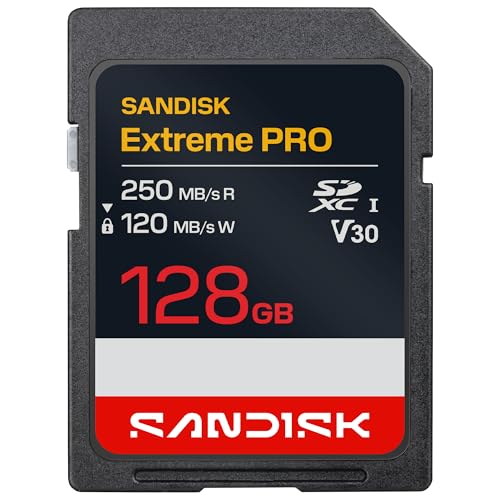





Write Your Review
No reviews yet. Be the first to share your experience!