
What's inside
- How to Choose Printer for Paper Jams: Quick Comparison Table
- Why Paper Jams Happen, and What to Look for in a Printer
- How to Choose Printer for Paper Jams Reviewed
- Buying Guide: How to Choose Printer for Paper Jams
- How to Prevent Paper Jams in a Home Printer
- Which Printer Should You Buy for Paper Jams?
- Frequently Asked Questions About How to Choose Printer for Paper Jams
As an Amazon Associate I earn from qualifying purchases. This post may contain affiliate links at no extra cost to you.
Paper jams are not just annoying. A jam can waste paper, damage a print job, and in a home office, it can cost you an hour when you need to print a report, a school form, or a shipping label. The best way to choose a printer for paper jams is to look for a printer with a simple paper path, a good pickup roller, a paper tray that feeds straight, and a design that lets you clear a jam without taking the printer apart.
For most homes and small offices, a laser printer jams less often than an inkjet printer, because it uses dry toner, a straight paper path, and a pickup roller that is made for plain paper. An inkjet printer can also work well, especially for photos, but it is more likely to jam if you use thick paper, glossy paper, or paper that is damp or curled. A printer with a rear feed, a manual feed slot, or a straight-through path can help with envelopes and cardstock, because the paper does not have to bend around a tight roller.
At technicalbud.com, we focus on tech gadgets. For this guide on how to choose printer for paper jams in 2026, we compared current printers that are widely sold, designed for home and small office use, and suitable for a person who wants fewer jams, easy jam clearing, and reliable printing. We looked at printer type, print speed, paper capacity, duplex, connectivity, and price. Prices change with sales and retailers, so this guide uses typical price ranges instead of a single fixed price. Speed, capacity, and connectivity figures are manufacturer listings, and real jam rates depend on paper quality, humidity, how full the tray is, and how often you clean the rollers.
Paper tip: use fresh, dry paper, store paper in a closed pack, do not overfill the tray, fan the paper before you load it, and use the paper type setting in the printer driver. Do not use paper that is curled, torn, or damp, and do not mix different paper types in the same tray. Clean the pickup roller with a damp cloth if the printer starts to feed two sheets at once, and check the manual for how to clear a jam safely.
Our Top Picks
 Amazon Basics Multipurpose Copy Printer Paper1 Ream | 500 Sheets11 x 8.5 x 2 inches5 poundsCheck on Amazon
How to Choose Printer for Paper Jams: Quick Comparison Table
The table below compares six printers that are good for paper jam prevention. Type is the printer type, where given. Speed is the print speed in pages per minute, where given. Capacity is the paper input capacity, where given. Duplex is automatic two-sided printing, where given. Connectivity is the connection options, where given. Best for is a note on what the printer is best for, such as a home office or a small office, where given. Price is the typical range, and rating is our editorial score based on paper handling, jam clearing, print quality, reliability, and value for home and office use.
| Printer for Paper Jams | Type | Print Speed | Paper Capacity | Duplex | Connectivity | Best For | Typical Price Range | Our Rating |
|---|---|---|---|---|---|---|---|---|
| Brother HL-L2460DW | Mono laser | About 32 ppm | 250 sheets | Yes, auto | USB, Wi-Fi, Ethernet | Best overall, home office | $120 – $160 | 4.9 / 5 |
| HP LaserJet Pro M209dw | Mono laser | About 29 ppm | 150 sheets | Yes, auto | USB, Wi-Fi | Best for HP, small office | $130 – $170 | 4.8 / 5 |
| Epson EcoTank ET-2850 | Colour inkjet, tank | About 10 ppm black, 5 ppm colour | 100 sheets | Yes, auto | USB, Wi-Fi | Best for Epson, colour and photos | $230 – $280 | 4.8 / 5 |
| Canon PIXMA TR7020a | Colour inkjet | About 15 ppm black, 10 ppm colour | 200 sheets | Yes, auto | USB, Wi-Fi | Best for Canon, home use | $90 – $130 | 4.7 / 5 |
| HP OfficeJet Pro 9015e | Colour inkjet | About 22 ppm black, 18 ppm colour | 250 sheets | Yes, auto | USB, Wi-Fi, Ethernet | Best for HP OfficeJet, small office | $180 – $230 | 4.7 / 5 |
| Brother MFC-J4335DW | Colour inkjet | About 20 ppm black, 18 ppm colour | 150 sheets | Yes, auto | USB, Wi-Fi | Best budget, Brother inkjet | $90 – $130 | 4.6 / 5 |
| Canon imageCLASS MF455dw | Mono laser, multifunction | About 40 ppm | 250 sheets | Yes, auto | USB, Wi-Fi, Ethernet | Best for Canon laser, multifunction | $250 – $300 | 4.6 / 5 |
Amazon Basics Multipurpose Copy Printer Paper, 8.5 x 11 Inches, 20 lb, 92 Bright, White, 1 Ream (500 Sheets), Jam-Free


As an Amazon Associate we earn from qualifying purchases. Product prices and availability are accurate as of the date/time indicated.

HP Printer Paper | 8.5 x 11 Paper | Copy &Print 20 lb | 1 Ream Case - 500 Sheets| 92 Bright | FSC Certified | 200060


As an Amazon Associate we earn from qualifying purchases. Product prices and availability are accurate as of the date/time indicated.
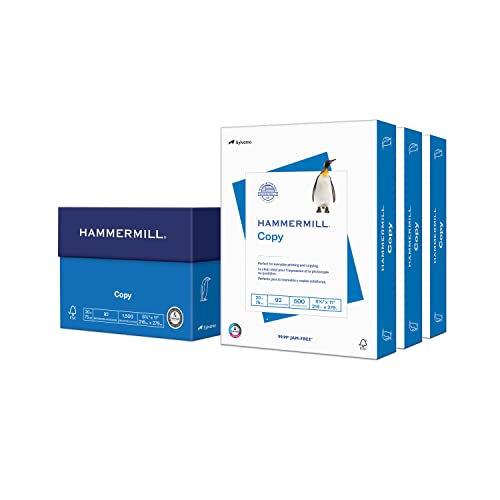
Hammermill Printer Paper, 20 lb Copy Paper, 8.5 x 11-3 Ream (1,500 Sheets) - 92 Bright, Made in the USA
As an Amazon Associate we earn from qualifying purchases. Product prices and availability are accurate as of the date/time indicated.
Note: Speed figures are manufacturer listings at typical use, and a printer that lists 32 ppm may print slower for a complex document, a photo, or a duplex job. Always check the paper capacity, the paper types supported, and the jam-clearing instructions in the manual, and confirm the current price with the retailer.
Why Paper Jams Happen, and What to Look for in a Printer
Paper jams happen for three main reasons: paper, rollers, and paper path. Paper matters because damp, curled, or torn paper is more likely to jam, and because mixing paper types in the same tray can cause the printer to pick up two sheets at once. Rollers matter because a dirty or worn pickup roller can slip, feed a sheet at an angle, or pick up more than one sheet. Paper path matters because a printer with a tight U-turn inside is more likely to jam with thick paper, while a printer with a straight path or a rear feed can handle envelopes and cardstock better.
When you choose a printer for paper jams, look for a printer with a simple paper path, a good pickup roller, and a tray that holds paper flat. Look for a printer with a rear manual feed slot if you print envelopes or cardstock, and look for a printer with a jam door that is easy to open, so you can clear a jam without removing the toner or ink cartridges. A printer with a 250-sheet tray is less likely to jam than a printer with a 100-sheet tray that is always overfilled, because you are less likely to overload it.
How to Choose Printer for Paper Jams Reviewed
1. Brother HL-L2460DW – Best Printer for Paper Jams Overall
The Brother HL-L2460DW is our top pick because it offers a mono laser design, a speed of about 32 pages per minute, a 250-sheet tray, automatic duplex, and a price of $120 to $160. It connects by USB, Wi-Fi, and Ethernet, and it has a straight paper path that is less likely to jam with plain paper. It also has a manual feed slot for envelopes, which helps when you print a small number of envelopes without changing the main tray.
Brother designs the HL-L2460DW with a focus on reliability for a home office. The pickup roller is easy to clean, the toner cartridge is separate from the drum, and the printer has a jam door at the back that lets you remove a jammed sheet without taking the printer apart. The printer is compact, quiet, and fast for black-and-white documents, and it uses toner that does not dry out like ink.
The main limitation is that it only prints in black and white, so it will not print colour photos or charts. Choose the HL-L2460DW if you want the best overall printer for fewer jams, you mainly print documents, and you want a laser printer that is simple, fast, and reliable.
2. HP LaserJet Pro M209dw – Best Printer for Paper Jams for HP Laser
The HP LaserJet Pro M209dw is a mono laser printer with a speed of about 29 pages per minute, a 150-sheet tray, automatic duplex, and a price of $130 to $170. It connects by USB and Wi-Fi, and it has a compact design that fits on a small desk. It also has a pre-installed toner cartridge, so you can start printing right away.
HP designs the M209dw with a focus on small office use. The paper path is short, the pickup roller is designed for plain paper, and the printer has a rear door for jam clearing. The printer also has HP Smart app support, which lets you print from a phone, scan a document, and check toner levels from an app.
The main limitation is paper capacity. At 150 sheets, it holds less than the Brother HL-L2460DW, so you will need to refill it more often if you print a lot. Choose the M209dw if you want an HP laser printer, you have a small desk, and you want a compact, reliable printer for documents.
3. Epson EcoTank ET-2850 – Best Printer for Paper Jams for Colour and Photos
The Epson EcoTank ET-2850 is a colour inkjet printer with refillable ink tanks, a speed of about 10 pages per minute in black and 5 pages per minute in colour, a 100-sheet tray, automatic duplex, and a price of $230 to $280. It connects by USB and Wi-Fi, and it has a rear feed for photo paper and a front tray for plain paper.
Epson designs the ET-2850 with a focus on low ink cost. The ink tanks can be refilled from bottles, which is cheaper than buying cartridges, and the printer can print photos, charts, and documents in colour. The paper path is designed to handle photo paper, and the printer has a jam door that is easy to open if a sheet does get stuck.
The main limitation is speed and capacity. At 10 ppm in black, it is slower than a laser printer, and at 100 sheets, it holds less paper. Choose the ET-2850 if you want a colour printer with low ink cost, you print photos and documents, and you accept a slower speed in exchange for colour and low running cost.
4. Canon PIXMA TR7020a – Best Printer for Paper Jams for Canon Home Use
The Canon PIXMA TR7020a is a colour inkjet printer with a speed of about 15 pages per minute in black and 10 pages per minute in colour, a 200-sheet tray, automatic duplex, and a price of $90 to $130. It connects by USB and Wi-Fi, and it has a front paper tray and a rear feed for photo paper, which helps with different paper types.
Canon designs the TR7020a with a focus on home use. The printer has a compact design, a 1.44-inch display, and a paper tray that holds 200 sheets, which is more than many inkjet printers at this price. The rear feed lets you print on photo paper or envelopes without changing the main tray, which reduces the chance of a jam from mixing paper types.
The main limitation is ink cost. The TR7020a uses ink cartridges, which can be expensive if you print a lot, and the print speed is slower than a laser printer. Choose the TR7020a if you want a Canon inkjet printer, you print at home, and you want a low purchase price with a good paper tray.
5. HP OfficeJet Pro 9015e – Best Printer for Paper Jams for HP OfficeJet Small Office
The HP OfficeJet Pro 9015e is a colour inkjet printer with a speed of about 22 pages per minute in black and 18 pages per minute in colour, a 250-sheet tray, automatic duplex, and a price of $180 to $230. It connects by USB, Wi-Fi, and Ethernet, and it has a 35-sheet automatic document feeder for scanning and copying.
HP designs the OfficeJet Pro 9015e with a focus on small office use. The paper tray holds 250 sheets, the printer has a straight paper path for plain paper, and it has a rear door for jam clearing. The printer also has a touchscreen display, which makes it easy to change paper type and check for a jam.
The main limitation is that it is an inkjet, so it can jam more often than a laser if you use damp paper or thick cardstock. Choose the OfficeJet Pro 9015e if you want an HP inkjet for a small office, you need colour and a document feeder, and you want a large paper tray.
6. Brother MFC-J4335DW – Best Budget Printer for Paper Jams for Brother Inkjet
The Brother MFC-J4335DW is a colour inkjet printer with a speed of about 20 pages per minute in black and 18 pages per minute in colour, a 150-sheet tray, automatic duplex, and a price of $90 to $130. It connects by USB and Wi-Fi, and it has a 20-sheet automatic document feeder.
Brother designs the MFC-J4335DW with a focus on value. It is a multifunction printer that can print, scan, copy, and fax, and it has a paper tray that is easy to load. The printer has a jam door that is accessible from the front, so you can clear a jam without moving the printer.
The main limitation is paper capacity and ink cost. At 150 sheets, it holds less than the HP OfficeJet Pro, and the ink cartridges can be expensive if you print a lot. Choose the MFC-J4335DW if you want a low-cost Brother inkjet, you need a multifunction printer, and you want a simple, affordable option for a home office.
7. Canon imageCLASS MF455dw – Best Printer for Paper Jams for Canon Laser Multifunction
The Canon imageCLASS MF455dw is a mono laser multifunction printer with a speed of about 40 pages per minute, a 250-sheet tray, automatic duplex, and a price of $250 to $300. It connects by USB, Wi-Fi, and Ethernet, and it has a 50-sheet automatic document feeder, a touchscreen, and a fast processor for large documents.
Canon designs the MF455dw with a focus on small office use. The laser design means fewer jams with plain paper, the paper tray holds 250 sheets, and the printer has a rear door for jam clearing. The multifunction design lets you scan and copy, which is useful if you need to digitise documents as well as print them.
The main limitation is price. At $250 to $300, it is the most expensive printer in this guide, and it only prints in black and white. Choose the MF455dw if you want a Canon laser multifunction printer, you print a lot of documents, and you want the fastest speed in this guide with a large tray.
Buying Guide: How to Choose Printer for Paper Jams
Before you buy, think about what you print, how much you print, what paper you use, and where the printer will sit. A printer that is perfect for a home office that prints 50 pages a month may not be the best choice for a small office that prints 500 pages a month, and a printer that is perfect for plain paper may not be the best choice for photo paper or envelopes. The six points below cover the decisions that matter most when you choose a printer for paper jams.
1. Printer Type: Laser vs Inkjet, and Which Jams Less
Printer type is the first decision. A laser printer, such as the Brother HL-L2460DW or HP LaserJet Pro M209dw, usually jams less often than an inkjet, because it uses dry toner, a straight paper path, and a pickup roller that is made for plain paper. A laser printer is also faster for documents, and toner does not dry out if you do not print for a month.
An inkjet printer, such as the Epson EcoTank ET-2850 or Canon PIXMA TR7020a, is better for colour photos, but it can jam more often if you use thick paper, glossy paper, or paper that is damp. Choose a laser printer if you mainly print documents and you want fewer jams. Choose an inkjet printer only if you need colour photos, you print on photo paper, and you accept a slightly higher jam risk in exchange for colour.
2. Paper Path: Straight Path, Rear Feed, and Manual Feed Slot
Paper path is the second decision. A printer with a straight paper path, a rear feed, or a manual feed slot can handle envelopes and cardstock better, because the paper does not have to bend around a tight roller. A printer with a U-shaped path inside, where paper goes up from the tray and then down to the output, is more likely to jam with thick paper.
Choose a printer with a rear feed or a manual feed slot if you print envelopes, labels, or cardstock often. Check the manual for the paper types supported, and use the manual feed for a small number of envelopes, rather than changing the main tray. Do not force thick paper through a printer that does not support it, because it can jam and damage the rollers.
3. Paper Capacity: 100 Sheets vs 250 Sheets, and Overfilling
Paper capacity is the third decision. A printer with a 250-sheet tray, such as the Brother HL-L2460DW or HP OfficeJet Pro 9015e, is less likely to jam than a printer with a 100-sheet tray that is always overfilled, because you are less likely to overload it. A printer with a small tray needs to be refilled often, and if you overfill it, the printer can pick up two sheets at once.
Choose a printer with a 250-sheet tray if you print more than 100 pages a month, you want to refill less often, and you want to reduce the chance of overfilling. Choose a printer with a 100-sheet tray only if you print very little, you have a small desk, and you will load paper carefully. Always load paper to the fill line, not above it, and fan the paper before you load it.
4. Jam Clearing: Rear Door, Front Access, and Easy Removal
Jam clearing is the fourth decision. A printer with a rear door, a front access panel, or a removable tray lets you clear a jam without taking the printer apart. A printer that requires you to remove the toner cartridge, open multiple doors, and pull a sheet from a tight space is harder to use, especially if you need to print urgently.
Choose a printer with a rear door or a front jam door that is easy to open, and check the manual for how to clear a jam. When you clear a jam, pull the paper slowly in the direction of the paper path, do not tear it, and check for small pieces left inside, because a torn piece can cause another jam. Turn off the printer before you clear a jam if the manual says to do so, and do not use sharp tools inside the printer.
5. Paper Quality: Fresh, Dry Paper, and Paper Type Settings
Paper quality is the fifth decision, and it matters more than the printer itself. Use fresh, dry paper, store paper in a closed pack, and do not use paper that is curled, torn, or damp. Use the paper type setting in the printer driver, so the printer knows whether you are using plain paper, photo paper, or cardstock, and it can adjust the feed speed and temperature.
Choose a printer that lets you set paper type easily, from the display or the driver, and use the right paper for the job. Do not mix different paper types in the same tray, because the printer can pick up the wrong sheet and jam. Clean the pickup roller with a damp cloth if the printer starts to feed two sheets, and replace the roller if it is worn, as directed in the manual.
6. Price, Total Cost, and Choosing a Printer on a Budget
Price ranges in this guide run from about $90 to $300 for a printer that is good for paper jam prevention, depending on type, speed, and features. A budget printer at $90 to $160, such as the Canon PIXMA TR7020a or Brother HL-L2460DW, is enough for most homes. A mid-price printer at $180 to $280, such as the HP OfficeJet Pro 9015e or Epson EcoTank ET-2850, offers colour and a larger tray. A premium printer at $250 to $300, such as the Canon imageCLASS MF455dw, offers the fastest speed and a multifunction design, but at a higher price.
Consider total cost as well as price. A printer that costs $120 and uses toner that lasts for 1,200 pages may cost less over a year than a printer that costs $90 and uses ink that lasts for 200 pages. Budget for a printer, and if you need it, paper, toner or ink, and a cleaning cloth for the rollers, not just a printer. Do not buy the cheapest printer if it has a small tray and a tight paper path, and do not buy the most expensive printer if you only print 50 pages a month. A printer with a straight paper path, a 250-sheet tray, and a rear door for jam clearing will help you print with fewer jams more reliably than a printer that is cheap but jams often, or expensive but too complex for your needs.
How to Prevent Paper Jams in a Home Printer
Preventing paper jams starts with paper. Use fresh paper, store it in a dry place, fan it before you load it, and do not overfill the tray. Use the correct paper type setting, and do not use paper that is curled or torn. Clean the pickup roller every few months with a damp, lint-free cloth, and check the manual for how to clean it safely.
Check the printer for dust, and remove any paper dust from the tray and the paper path. Do not put the printer in a humid room, such as a bathroom, and do not place it near a window where rain can get in. If the printer jams often, check the paper, clean the rollers, and try a different brand of paper. If it still jams, check the manual for a firmware update, or contact the manufacturer for support.
Which Printer Should You Buy for Paper Jams?
If you want the best printer for paper jams, buy the Brother HL-L2460DW. It costs $120 to $160, it offers a mono laser design, a speed of about 32 pages per minute, and a 250-sheet tray, which is the best balance for most homes and small offices.
If you want an HP laser printer, buy the HP LaserJet Pro M209dw. If you want a colour printer with low ink cost, buy the Epson EcoTank ET-2850. If you want a Canon inkjet for home use, buy the Canon PIXMA TR7020a. If you want an HP OfficeJet for a small office, buy the HP OfficeJet Pro 9015e. If you want a low-cost Brother inkjet, buy the Brother MFC-J4335DW. If you want a Canon laser multifunction printer, buy the Canon imageCLASS MF455dw.
All seven printers in this guide are currently sold, designed for home and small office use, and suitable for a person who wants fewer jams, easy jam clearing, and reliable printing. Pick the one that matches what you print, how much you print, what paper you use, and your budget, and always use fresh paper, do not overfill the tray, and clean the rollers regularly.
Disclosure: technicalbud.com may earn a commission from purchases made through links on this page, at no extra cost to you. Prices listed are typical ranges and can vary by retailer and sale. Speed, capacity, and connectivity figures are manufacturer claims and can vary by model. Always check the paper types supported in the manual, and follow the manufacturer’s instructions for clearing a jam.
Frequently Asked Questions About How to Choose Printer for Paper Jams
How do I choose a printer that will not jam often?
How do you choose a printer that will not jam often? In most cases, choose a laser printer with a straight paper path, a 250-sheet tray, and a rear door for jam clearing, such as the Brother HL-L2460DW. Use fresh, dry paper, do not overfill the tray, fan the paper before you load it, and clean the pickup roller regularly. A laser printer usually jams less often than an inkjet, because it uses dry toner and a simple paper path.
Why does my printer keep jamming?
Why does your printer keep jamming? In most cases, a printer jams because the paper is damp, curled, or torn, the tray is overfilled, or the pickup roller is dirty or worn. Check the paper, use fresh paper, load it to the fill line, and clean the roller with a damp cloth. If the printer still jams, check for a small piece of paper left inside, check the paper type setting, and try a different brand of paper. If the problem continues, contact the manufacturer for support.
Is a laser printer better than an inkjet printer for paper jams?
Is a laser printer better than an inkjet printer for paper jams? In most cases, yes, a laser printer is better for fewer jams with plain paper, because it has a straight paper path, dry toner, and a pickup roller made for plain paper. An inkjet printer is better for colour photos, but it can jam more often with thick paper or damp paper. Choose a laser printer if you mainly print documents, and an inkjet printer only if you need colour photos.
How do I clear a paper jam safely?
How do you clear a paper jam safely? In most cases, turn off the printer if the manual says to do so, open the rear door or front access panel, and pull the paper slowly in the direction of the paper path. Do not tear the paper, and check for small pieces left inside, because a torn piece can cause another jam. Do not use sharp tools inside the printer, and do not touch the rollers with your fingers if the manual says not to. After clearing, close the door, turn the printer back on, and print a test page.
Related guides
- Best AAA Batteries for Office Remotes in 2026: AAA Batteries for Office Remotes
- Best Budget Tablet for Work Under 100 in 2026: Budget Tablets for Work Under $100, Office Work, and Productivity
- Best Gimbal for Office Vlogging in 2026: 7 Gimbals for Office Vlogging That Keep Your Video Smooth, Stable, and Professional in the Office
- Best Budget NAS Dust Filter for Maintenance in 2026: 7 Budget NAS Dust Filters for Maintenance With Clear Airflow, Simple Install, and Easy Use for NAS
More from Amazon
Programs that pair well with the guide above. Offers and eligibility are set by Amazon and may change.
Free shipping on eligible items, Prime Video and more. Eligible new members can start with a free trial.
Start a Prime free trialAd-free music streaming. Eligible new subscribers can start with a free trial.
Try Music Unlimited freeA Prime membership for ages 18-24 with a trial period. Eligibility is set by Amazon.
See Prime for Young AdultsAudiobooks and podcasts to listen to on the go. Eligible new members can start with a free trial.
Try Audible freeAs an Amazon Associate we earn from qualifying purchases.

Write Your Review
No reviews yet. Be the first to share your experience!