
What's inside
- What Makes the Best External Hard Drive for Network Storage
- Quick Comparison: Network Storage Drives and Systems Compared
- The Six Network Storage Options Reviewed
- Buying Guide: Choosing Your Route and Commissioning It Safely
- How We Selected These Network Storage Options
- Frequently Asked Questions About External Hard Drives for Network Storage
As an Amazon Associate I earn from qualifying purchases. This post may contain affiliate links at no extra cost to you.
The best external hard drive for network storage starts with a clarification that will save you a purchase: an external hard drive, by itself, is not network storage. It is a USB device, and it joins a network only through a host — a router with a USB port and file-sharing features, a computer left running as a server, or a proper network-attached storage enclosure designed for the job. Each host turns the same drive into a very different product. Plugged into a router, a desktop external drive becomes simple shared storage: fine for a household’s media library, backups of a couple of computers, and files everyone needs, at speeds and reliability bounded by the router’s modest sharing software. Plugged into an always-on computer, it inherits that machine’s power bill and its owner’s patience. Seated inside a NAS — the small, purpose-built computers from Synology, QNAP, and their peers, filled with drives rated for 24/7 multi-drive duty — it becomes the real thing: redundant storage that survives a drive’s death, user accounts and permissions, remote access, automated backups, and media serving that transcodes. This guide grades all three routes honestly, because each is the right answer for a different household: the router-attached desktop drive for the simple, cheap brief; NAS-rated drives and a two-bay enclosure for anyone whose files include things that cannot be re-downloaded; and it names the category’s one hard rule before anything else, in bold spirit if not in type: a single drive is never a backup, on a network or off one. Network storage’s job is availability — every device, every room, one copy of the family archive — and availability without a second copy somewhere, ideally off-site or in cloud storage for the irreplaceable parts, is a single point of failure with a network cable attached.
Drive choice within those routes follows the duty, and the listings blur it, so learn the three families. Desktop external drives — the WD My Book and Seagate Backup Plus Hub class — package a 3.5-inch drive with a power supply in a box built for a desk and intermittent use; they are the router-attachment candidates and the budget route’s whole catalogue, with capacities that now reach sizes a household archive genuinely needs at the lowest cost per terabyte in this guide. NAS-rated internal drives — WD Red Plus, Seagate IronWolf — are bare 3.5-inch drives engineered for the opposite life: spinning around the clock in a warm enclosure beside other drives, with vibration handling, error-recovery behaviour tuned for RAID arrays, and warranties written for that duty; they cost more per terabyte and are the only correct filling for a NAS. Portable 2.5-inch externals — the pocket drives — are the wrong tool here despite their convenience: slower, smaller, built for travel duty, and priced per terabyte like it. SMR versus CMR deserves its sentence: some large desktop and entry NAS drives use shingled magnetic recording, which writes data in overlapping tracks and can slow dramatically during long sustained writes and RAID rebuilds; for router-attached media duty it is tolerable, for a NAS you care about it is worth avoiding in favour of CMR models where the maker discloses the technology — WD’s Red Plus and Seagate’s IronWolf lines are the CMR-safe harbours this guide steers toward. Speed expectations, finally, should be set by the network, not the drive: gigabit Ethernet moves roughly a hundred megabytes per second on a good day, every drive in this table exceeds that, and the household that needs more is shopping for 2.5-gigabit networking, a different article’s parish.
Reliability doctrine completes the frame, because network storage fails socially before it fails mechanically: it becomes the place the family’s photographs live, singular, because it was so convenient. The doctrines are few and absolute. Use redundancy where the platform offers it — a two-bay NAS in a mirrored RAID 1 keeps working the day a drive dies, and drives do die, on a schedule written by statistics rather than by your plans. Remember that RAID is availability, not backup: it does not protect against deletion, ransomware, theft, fire, or the NAS itself failing, so the irreplaceable tier — photographs, documents, the archive — gets a second copy elsewhere, automated, whether that is a rotated external drive kept off-site or a cloud tier. Put the NAS or the router-drive on a small uninterruptible power supply if your power is unreliable, because storage hates surprise outages more than any other electronics you own. And keep the firmware updated and the admin password changed from its default, because a network drive is a small computer facing your whole network and, if you enable remote access carelessly, the internet. Graded inside that doctrine, the products below are the ones this guide would trust with a household’s memory.
Our Top Picks
What Makes the Best External Hard Drive for Network Storage
Route One: The Router-Attached Drive
If your router offers USB sharing — check its specifications for file-sharing or media-server features, since not all do — a desktop external drive turns it into basic network storage tonight, for the price of the drive alone. Expect simple shared folders, modest speeds, and sharing software a generation behind a NAS; expect also that it will be enough for a media library, a Time Machine or File History target of modest ambition where supported, and household file exchange. Choose the largest desktop drive your archive’s three-year growth implies, because expanding a router drive means replacing it, and place it where its power supply and the router can breathe.
Route Two: The Two-Bay NAS, Done Properly
The grown-up answer is a two-bay enclosure from a maker with a mature operating system — Synology’s DSM is the usability benchmark, QNAP the hardware-value rival — filled with two NAS-rated CMR drives in a mirror. You gain user accounts, automated multi-computer backup, photo and media applications that justify the word server, remote access done with some care, and the mirror’s survival of a single drive’s death. You pay several times the router route’s total, in exchange for the household’s files becoming infrastructure instead of a box. For archives that matter, this guide’s grades concentrate here, unapologetically.
Capacity, Noise, and Placement Planning
Size the array for the archive plus its growth plus the backup targets it will hold — a household backing up three computers and storing a photo library should think in the high single-digit terabytes of usable (post-mirror) space, not the raw figure on the drive boxes. Place network storage where its small noises and blinking do not colonise a bedroom: spinning drives are audible in a quiet room, and a NAS in a ventilated cupboard or office corner, on a UPS, wired by Ethernet to the router rather than relying on Wi-Fi, is the professional installation. Plan the off-site or cloud tier for the irreplaceable folders at the same sitting, while the doctrine is fresh.
Quick Comparison: Network Storage Drives and Systems Compared
| Product | Class / Best For | Key Specs | Typical Price Range | Rating |
|---|---|---|---|---|
| Synology DiskStation DS224+ (enclosure) | NAS — best external hard drive for network storage overall (with NAS drives) | 2-bay, DSM software, gigabit Ethernet (dual), media and backup apps as published | $280 – $350 (drives extra) | 4.8 / 5 |
| WD Red Plus (NAS internal HDD) | NAS drive — best drive for a NAS | CMR, 24/7 rated, capacities from 2TB upward as published | $80 – $300 by capacity | 4.7 / 5 |
| Seagate IronWolf (NAS internal HDD) | NAS drive — best NAS drive value | CMR, 24/7 rated, health management with supported NAS as published | $75 – $280 by capacity | 4.6 / 5 |
| WD My Book (desktop external) | Router-attached — best simple network share | USB 3, single desktop drive, capacities to very large sizes as published | $120 – $450 by capacity | 4.4 / 5 |
| QNAP TS-233 (enclosure) | NAS — best value enclosure | 2-bay, QTS software, media apps, gigabit Ethernet as published | $200 – $280 (drives extra) | 4.4 / 5 |
| Seagate Backup Plus Hub (desktop external) | Router-attached — best desktop hub features | USB 3 with front USB ports, single drive, large capacities as published | $130 – $400 by capacity | 4.2 / 5 |

WD 20TB Elements Desktop External Hard Drive, USB 3.0 drive for plug-and-play storage - WDBWLG0200HBK-NESN
As an Amazon Associate we earn from qualifying purchases. Product prices and availability are accurate as of the date/time indicated.

Seagate 2TB Portable Hard Drive | USB 3.0 (STGX2000400) | Everyday HDD storage. Plug-and-play backup. Windows & macOS. Adobe CC trial included. 1-Year Warranty
As an Amazon Associate we earn from qualifying purchases. Product prices and availability are accurate as of the date/time indicated.
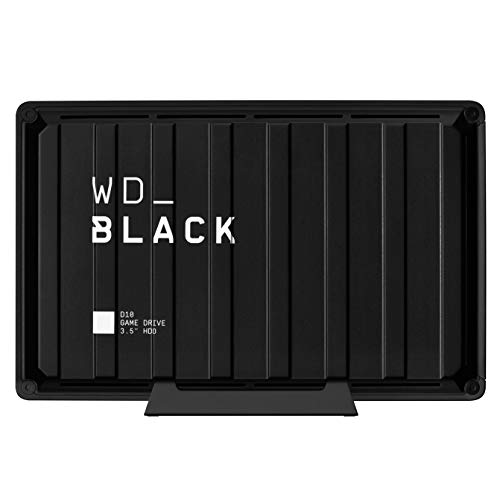
WD_BLACK 8TB D10 Game Drive - Portable External Hard Drive HDD Compatible with Playstation, Xbox, PC, & Mac - WDBA3P0080HBK-NESN
As an Amazon Associate we earn from qualifying purchases. Product prices and availability are accurate as of the date/time indicated.
Ratings are editorial assessments for home network storage, based on the makers’ published specifications, recording technology, and software, and value at typical prices. A complete NAS costs the enclosure plus two drives; a router-attached setup costs the drive alone and requires a router with USB sharing. Prices are typical retail ranges and scale strongly with capacity.
The Six Network Storage Options Reviewed
1. Synology DS224+ — Best Overall System
The DS224+ is the household server this guide recommends without a follow-up paragraph: DSM’s backup, photo, and file applications are the class’s usability summit, the hardware is honest, and filled with a mirrored pair of NAS drives it becomes the place a family’s digital life can responsibly live. It is the dearest route in the table once drives are counted, and it is graded as the destination most households eventually arrive at — bought first, it is also the cheapest, once.
2. WD Red Plus — Best NAS Drive
Red Plus is the default filling for that enclosure: CMR recording, a genuine 24/7 rating, vibration handling for multi-bay life, and behaviour in a RAID rebuild that its SMR cousins cannot promise. Capacity for capacity it costs more than desktop drives, and the difference is the duty it is engineered and warranted for — inside a NAS, that difference is not a premium, it is the product.
3. Seagate IronWolf — Best NAS Drive Value
IronWolf matches the Red Plus doctrine at prices that frequently undercut it, with its own health-management reporting when paired with supported enclosures. Between the two NAS drive lines, choose by capacity pricing on the day and by your enclosure maker’s compatibility list; a household that picks either, in a mirrored pair, has made the decision that matters and may stop shopping with this guide’s blessing.
4. WD My Book — Best Router-Attached Drive
The My Book is the simple route done well: a capacious desktop drive that plugs into a capable router and becomes the household share tonight, with the lowest cost per terabyte here and setup measured in minutes. Its limits are its route’s limits — one drive, no redundancy, the router’s basic sharing — and graded inside them, it is the correct purchase for media libraries and modest sharing on a budget that has other plans.
5. QNAP TS-233 — Best Value Enclosure
QNAP’s two-bay undercuts Synology while offering a deep, capable system of its own, suiting households comfortable trading a little software polish for hardware value. Its security hygiene demands the owner’s attention — updates current, remote access configured with care, as with any NAS — and with that discipline observed, it is the value route to a real mirrored server.
6. Seagate Backup Plus Hub — Best Desktop Hub Features
The Backup Plus Hub adds front USB ports that charge and connect, making it the tidiest desk-based router companion of the desktop class. Its drive is a single point of failure wearing a hub’s convenience, graded accordingly: a fine shared scratch space and media shelf, not an archive. Buy it for what it is and it will never disappoint you; the disappointments in this category are all category errors.
Buying Guide: Choosing Your Route and Commissioning It Safely
Step One: Census the Archive, the Devices, and the Risk
Write down what the network storage must hold — media, backups of how many computers, the photo archive, work files — with today’s size and an honest three-year growth guess; what it must serve — televisions, phones, remote access or none; and which folders are irreplaceable, because those set the redundancy and the second-copy tier. That census picks the route without sentiment: replaceable media and light sharing take the router road; an irreplaceable archive takes the mirrored NAS road, and no discount converts one road into the other.
Step Two: Commission It Like Infrastructure
Set up in order: the enclosure or router share created; drives initialised in the mirror where offered; the admin password changed and firmware updated before data moves; user accounts made for the household rather than one shared login; automated backups from each computer pointed at it and verified by restoring one file — a backup unrestored is a hypothesis; and the irreplaceable tier’s second copy configured the same day, off-site or cloud, automated. Connect by Ethernet, place it ventilated and UPS-protected if your power flickers, and write the setup in the house notes.
Step Three: Keep It Alive for Years
Check the system’s health reports monthly — drive SMART status, backup success, available space — because storage fails by warning first and catastrophe second, and the warnings only help the household that reads them. Replace a drive at the first confirmed health decline, keep one firmware cycle behind the bleeding edge if your household prefers calm, and re-run the capacity census yearly. So censused, commissioned, and kept, the chosen system performs the only service that matters: every photograph, document, and deadline file in the house, in one known place, on every screen, surviving the ordinary accidents of digital life — which is what network storage was always supposed to mean.
How We Selected These Network Storage Options
We included only real, named, currently sold drives and enclosures whose makers publish capacity, recording technology where applicable, and software specifications, spanning the NAS system, NAS drive, value enclosure, and router-attached desktop classes. Prices are typical retail ranges. Grades weight data-safety doctrine — CMR, 24/7 rating, mirror capability, software maturity — over raw cost per terabyte, which the desktop entries win and the grades contextualise.
Frequently Asked Questions About External Hard Drives for Network Storage
Can I just plug an external hard drive into my router?
Often, yes — if your router has a USB port with file-sharing or media-server features, which many mid-range and better routers do and budget ones often do not, so check the specifications or the router’s app before buying the drive. Expect simple shared folders, speeds capped by the router’s sharing performance and your network, and basic or no user permissions. It is a legitimate, economical setup for media and light sharing, as this guide grades it — and it is not a NAS, so do not ask it to be the family’s only archive.
Is a NAS worth it over a router-attached drive?
For an irreplaceable archive, yes, and the difference is not speed — it is survival and software: a mirrored pair of NAS-rated drives keeps your files available through a drive’s death, and a mature NAS operating system automates every computer’s backup, organises photos, and manages users and remote access properly. For a re-downloadable media library and casual sharing, the router route delivers most of the daily experience at a fraction of the total cost. The census in the buying guide — what would it cost you, in grief, to lose this folder — prices the answer honestly for your household.
Does RAID mean my files are backed up?
No, and the distinction is the most important sentence in this guide: RAID mirroring protects against one thing, a drive’s physical failure, keeping files available while you replace it. It does not protect against accidental deletion, ransomware encrypting the share, the enclosure failing, theft, or fire — the mirrored copy faithfully mirrors the disaster. Backup means a second, separate copy of the irreplaceable data, ideally in a different place: a rotated external drive stored off-site, a cloud backup tier, or both. Network storage plus backup is a system; network storage alone is a location.
How much network storage capacity does a household need?
Add your archive’s current size, the backup images of every computer you will protect (each commonly wants space comparable to its internal drive’s used portion), and three years of growth — photographs and phone video dominate most households’ curves — then double the total if you will mirror, since a mirrored pair’s usable space is one drive’s worth. Most households land between four and twelve usable terabytes by that arithmetic. Buying a size up is cheap insurance; a network drive that fills in year two teaches the whole family to delete the wrong things under pressure.
Related guides
- Best AAA Batteries for Office Remotes in 2026: AAA Batteries for Office Remotes
- Best Budget Tablet for Work Under 100 in 2026: Budget Tablets for Work Under $100, Office Work, and Productivity
- Best Gimbal for Office Vlogging in 2026: 7 Gimbals for Office Vlogging That Keep Your Video Smooth, Stable, and Professional in the Office
- Best Budget NAS Dust Filter for Maintenance in 2026: 7 Budget NAS Dust Filters for Maintenance With Clear Airflow, Simple Install, and Easy Use for NAS
More from Amazon
Programs that pair well with the guide above. Offers and eligibility are set by Amazon and may change.
Free shipping on eligible items, Prime Video and more. Eligible new members can start with a free trial.
Start a Prime free trialAd-free music streaming. Eligible new subscribers can start with a free trial.
Try Music Unlimited freeA Prime membership for ages 18-24 with a trial period. Eligibility is set by Amazon.
See Prime for Young AdultsAudiobooks and podcasts to listen to on the go. Eligible new members can start with a free trial.
Try Audible freeAs an Amazon Associate we earn from qualifying purchases.

Write Your Review
No reviews yet. Be the first to share your experience!