
What's inside
- Best Hard Drive Dock vs Enclosure for Office Use: The Two Forms Divided
- Quick Comparison: Best Hard Drive Dock vs Enclosure for Office Use Models
- Detailed Reviews: Best Hard Drive Dock vs Enclosure for Office Use Picks
- Buying Guide: Choosing the Best Hard Drive Dock vs Enclosure for Office Use
- Frequently Asked Questions About Best Hard Drive Dock vs Enclosure for Office Use
As an Amazon Associate I earn from qualifying purchases. This post may contain affiliate links at no extra cost to you.
The best hard drive dock vs enclosure for office use debate is really a question about how often the drive changes. A dock is a desk tool: a bare drive drops in, is read, cloned, wiped, or imaged, and comes out again, serving the IT drawer, the migration project, and the drawer of retired drives every office accumulates. An enclosure is a home: one drive lives inside it, protected, cooled, and carried, becoming a permanent external drive for a desk, a backup rotation, or a travelling archive. This guide compares real, currently sold docks and enclosures from Thermaltake, Sabrent, StarTech, UGREEN, Inateck, and Fideco, explains the office tasks each form owns, cloning, imaging, data recovery triage, backup duty, and permanent expansion, and gives the handling and data discipline that matters more than the hardware, because these tools touch bare drives and live data.
Set the data frame before the products, because a dock makes it dangerously easy to be casual. A bare drive on a desk is the data it holds, unprotected mechanically and one mistaken format away from loss, so the office rules of this guide apply to every recommendation: never work on the only copy of anything, image or copy a failing drive before attempting repair in the standard practice, verify a clone before wiping its source, label drives with their contents and date in the literal sense, and follow your organisation’s data protection and disposal requirements for anything that held personal, client, or regulated data, including certified wiping or destruction where those rules require it. Drives are handled by their edges, on a clear desk, away from drinks and static-prone clutter, and a dock is powered down or ejected in its maker’s stated pattern before a drive is lifted out, because a drive removed mid-write is a filesystem’s bad day and occasionally a drive’s last one.
Prices are typical retail ranges, and specifications, drive sizes supported, interface speeds in the makers’ stated USB terms, cloning features, and enclosure materials, are each maker’s details for the current version, so confirm them before you buy, particularly whether a dock’s offline clone function and its capacity limits match the drives your office actually holds.
Our Top Picks
Best Hard Drive Dock vs Enclosure for Office Use: The Two Forms Divided
The Dock: A Tool for Drives That Come and Go
A dock’s virtues are speed of exchange and functions a closed box cannot offer. The top-loading patterns in this table take 2.5 and 3.5 inch SATA drives in the makers’ stated support, seat them without screws or trays, and present them to the computer at the interface’s stated speed, which makes the dock the office’s answer to a sequence of one-off jobs: reading the drive from a retired laptop, imaging a new machine’s disk, checking what a found drive holds before it is recycled under the data rules above. Dual-bay docks add the category’s signature function, offline cloning in several makers’ stated features, duplicating a drive to an equal or larger target without a computer attached, at the touch of a button and the patience the drives’ size demands, which is the migration and upgrade tool of small offices everywhere. The dock’s costs are the bare drive’s costs: exposed electronics and platters’ housing on a desk, no cooling beyond the room’s air, and no protection in transit, which is why the dock is furniture for a desk and never a bag, and why its drives, when they hold anything that matters, live in cases or in their machines between sessions.
The Enclosure: A Home for One Drive, Permanently
An enclosure converts a bare drive into an external drive, with everything that implies: a shell that protects it mechanically, in aluminium patterns in this table a heatsink that cools it in the makers’ designs, a cable and a place in a bag or a desk’s order, and a drive that is never handled bare again. The office uses are the standing ones: the backup drive that rotates through the week’s schedule, the archive drive that holds a project’s records at hand, the large drive that expands a small laptop’s desk, the travelling drive that carries a site’s data in a protected form. Enclosures divide by drive kind, SATA patterns for the 2.5 and 3.5 inch drives in the makers’ support, and NVMe patterns for the M.2 sticks modern machines retire, whose enclosures in the Sabrent and UGREEN lines turn a replaced laptop SSD into a fast pocket drive, one of the best value moves in office computing. The enclosure’s cost is commitment: swapping its drive is a screws-and-minutes job rather than a dock’s seconds, so it suits the drive whose job is settled.
Interfaces, Speeds, and the Office’s Real Bottlenecks
Both forms speak USB in the current market, stated in the makers’ terms as USB generations whose headline speeds the buyer should read realistically: a mechanical hard drive cannot fill even the older of the current interfaces, so a dock or enclosure for spinning drives is bought on its functions and build, not its interface figure; a SATA SSD saturates in the middle of the current range; and an NVMe stick in its enclosure is the only combination here that rewards the fastest stated interfaces and the computer port that matches them. Offline clone speed on dual docks is its own figure in the makers’ terms and is bounded by the slower of the two drives, which for a mechanical source is an overnight expectation on a large drive, planned rather than complained about. Power is the quiet specification: 3.5 inch drives need the 12-volt supply the docks and desktop enclosures include in their makers’ arrangements, and a dock bought without checking that supply’s presence is a 2.5 inch tool wearing a 3.5 inch slot, so the check belongs in the purchase, as the buying guide repeats.
Quick Comparison: Best Hard Drive Dock vs Enclosure for Office Use Models
| Model | Form and Key Specs in Maker’s Terms | Best For | Typical Price Range | Rating |
|---|---|---|---|---|
| Thermaltake BlacX Duet class dock | Dual-bay top-loading dock, 2.5 and 3.5 inch SATA in maker’s support, USB interface stated | Best all-round office dock, migrations and drive triage | $45 – $75 | 4.5 / 5 |
| Sabrent Dual-Bay Dock with Offline Clone class | Dual-bay dock, offline cloning function in maker’s terms, SATA support stated | Best cloning dock for upgrades and imaging | $50 – $85 | 4.6 / 5 |
| StarTech Dual Bay Dock and Duplicator class | Dual-bay dock and standalone duplicator in maker’s line, office and IT features stated | Best IT-drawer dock, professional workflows | $80 – $150 by model | 4.5 / 5 |
| UGREEN 3.5 Inch Enclosure class | Single-bay enclosure for 3.5 and 2.5 inch SATA in maker’s support, mains powered | Best enclosure for a permanent desk or backup drive | $25 – $45 | 4.4 / 5 |
| Sabrent NVMe Enclosure class | Tool-free aluminium enclosure for M.2 NVMe in maker’s support, USB speeds stated | Best enclosure for a retired laptop SSD | $25 – $50 by model | 4.6 / 5 |
| Fideco Dual-Bay Dock and Enclosure class | Dual-bay docks with clone functions and enclosures in maker’s range | Best value dock and clone functions | $30 – $60 by model | 4.2 / 5 |
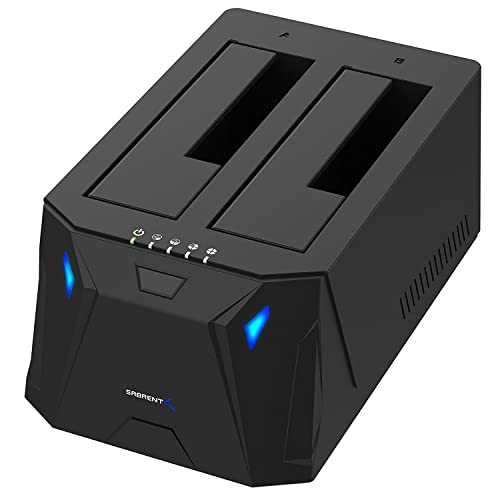
SABRENT USB 3.0 Dual Bay Hard Drive Docking Station & Cloner (EC-HD2B) | 2.5"/3.5" HDD/SSD; offline duplicator/cloner; 20TB+ support; UASP; SATA I/II/III; hard drive reader; hard drive dock
As an Amazon Associate we earn from qualifying purchases. Product prices and availability are accurate as of the date/time indicated.

ORICO Dual Bay Hard Drive Docking Station Hard Drive Cloner | USB to SATA with Duplicator/Offline Clone Function External Hard Drive Dock for 2.5''/3.5'' HDD SSD Support UASP Plug&Play
As an Amazon Associate we earn from qualifying purchases. Product prices and availability are accurate as of the date/time indicated.

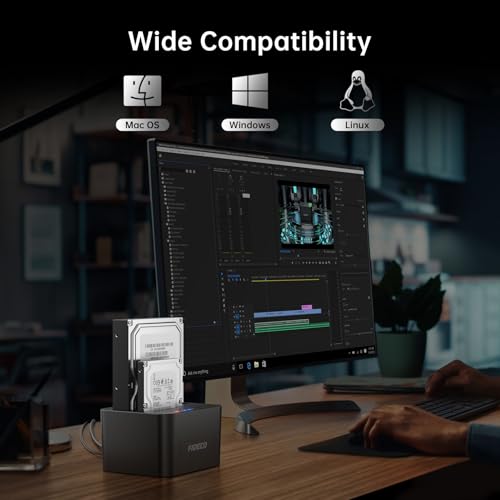
FIDECO External Hard Drive Docking Station, Hard Drive Dock for 2.5 and 3.5 inch SATA HDD SSD, HDD Docking Station with Dual Bay, USB 3.0 Hard Drive Reader, Support Offline Clone and UASP




As an Amazon Associate we earn from qualifying purchases. Product prices and availability are accurate as of the date/time indicated.
Drive sizes supported, interface generations, cloning functions and their limits, and power arrangements are each maker’s stated details for the current version. Price ranges are typical retail ranges and vary by model, retailer, and promotion. Ratings are editorial ratings for office use: exchange and clone practicality for docks, protection and cooling for enclosures, build and connector quality, software-free reliability, and value to a working office.
Detailed Reviews: Best Hard Drive Dock vs Enclosure for Office Use Picks
1. Sabrent Dual-Bay Clone Dock Class – Best Hard Drive Dock for Office Use
Sabrent’s dual-bay docks lead the office argument because they centre the function offices actually buy docks for: offline cloning in the maker’s stated terms, source to target at a button’s press, with progress indication in its designs, for the laptop fleet’s SSD upgrades and the retiring machine’s disk preserved before its replacement ships. Its bays take the office’s mixed drive sizes in the maker’s support, its build suits a shared IT drawer’s life, and its price sits where a small office buys two, one for the bench and one for the cupboard, without a meeting. Verify the clone function’s stated rules, target equal or larger, and any file system notes in the maker’s documentation, before the migration weekend rather than during it.
2. Thermaltake BlacX Class – Best Simple Hard Drive Dock for Office Use
The BlacX pattern is the dock as an appliance: drives drop in, are read, and come out, in single and dual-bay patterns in the maker’s line that have served desks for years, with the power arrangements the 3.5 inch drives in an office’s history require. It lacks the StarTech row’s professional depth and matches the Sabrent row on the everyday jobs, triage, imaging, reading the retired drive, at prices that make it the office’s spare as readily as its main tool. For a desk that needs a dock twice a month and needs it to work both times without a thought, it is the unglamorous correct answer.
3. Sabrent NVMe Enclosure Class – Best Hard Drive Enclosure for Office Use
The NVMe enclosure is the office’s best recycling: a tool-free aluminium shell in the maker’s design that takes the M.2 drive from an upgraded laptop and returns it as a pocket SSD at the interface’s stated speeds, for installers, images, and a fast shuttle between desks. Its aluminium body is the drive’s heatsink in the maker’s arrangement, its size is a coat pocket’s, and its value is the purchase it replaces, a new portable SSD at several times the price. Every office retiring NVMe machines should own one before it owns a second dock, because the drives it rescues are the fastest storage the office is currently throwing into a drawer.
4. StarTech Dock and Duplicator Class – Best Professional Hard Drive Dock for Office Use
StarTech’s docks and duplicators serve the office with an IT function: stated features in its line aimed at imaging, wiping, and duplicating workflows, build and support aimed at professional buyers, and documentation that answers the questions a compliance-minded office asks. Its prices top the table and return it in the currency professionals count, predictable behaviour across a fleet of drives and a supplier who answers. A home office will find it more than it needs; an office that images machines monthly will find it the row that treats the work as work.
5. UGREEN Enclosure Class – Best Hard Drive Enclosure for a Permanent Office Drive
UGREEN’s enclosures make a bare SATA drive into desk infrastructure: a 3.5 inch pattern in its line with the mains power the big drives require, for the backup drive that lives beside the machine it protects, and 2.5 inch patterns for the laptop drives that become a desk’s expansion. Their build and connectors sit at the sensible end of the value class, their designs keep a drive cool and cabled in a permanent installation, and their price lets the office enclosure a drive per purpose, backup, archive, shuttle, each labelled, rather than sharing one shell among three jobs. For the enclosure side of this guide’s question, it is the default recommendation.
6. Fideco Class – Best Value Hard Drive Dock for Office Use
Fideco’s docks bring the dual-bay and clone functions to the table’s lowest prices, in patterns whose stated support covers the office’s common drives, and for the occasional migration or the small office equipping itself from nothing they are a rational start. Their finish and documentation stand below the leaders as the price predicts, and a buyer should test the clone function on unimportant drives before trusting it with a migration, which is good practice with any dock and essential advice at this price. As the second dock, the branch office’s dock, the one that lives in the cupboard against a rainy day, it earns its place.
Buying Guide: Choosing the Best Hard Drive Dock vs Enclosure for Office Use
Decide by the Drive’s Job: Passing Through, or Taking Up Residence
Ask the one question this guide opened with, per drive. Drives that pass through, retired machines’ disks to be read, drives to be cloned, wiped, imaged, or checked, belong to the dock, bought dual-bay if cloning is among the jobs and single if it is not, with the 12-volt supply confirmed for 3.5 inch duty. A drive with a standing job, the backup rotation, the archive, the desk’s expansion, belongs in an enclosure, SATA for the spinning and 2.5 inch drives, NVMe for the sticks, in a shell whose material and cooling suit a drive that runs for hours. Most working offices end with both, a dock on the bench and enclosures on the drives that matter, at a combined cost below one replacement of the data a casual moment can lose, which is the comparison that should settle the budget meeting.
Run the Tools Safely: Image First, Verify, and Label Everything
Adopt the bench discipline as office policy. Work only on copies where the data matters: image a questionable drive to a known-good one before utilities touch it, because a failing drive’s remaining life is spent best on one careful read. Verify every clone and copy before its source is wiped or recycled, by booting it or checking it in the ordinary verification patterns, and only then process the source under the organisation’s data disposal rules, wiping or destruction as those rules and the data’s sensitivity require, documented where the organisation documents such things. Label every bare drive the day it leaves a machine, contents, source machine, date, and owner, in marker on the label and in the office’s record, because the unlabelled drive is the office’s mystery meat, unusable because it might matter and undeletable for the same reason. Handle drives by their edges, seat them fully before power, eject and power down in the maker’s pattern before removal, and keep the dock’s desk clear of the coffee that ends more drives than malware does.
Build the Office System: Backup Rotation and the Retired Drive Drawer
Let the purchase finish the office’s storage system rather than decorate it. Put the backup drives in enclosures, labelled by their rotation day in the common pattern, so a restore is a labelled object on a shelf and not a bare drive and a hope. Keep the dock with its cables and power supply together in the IT drawer, with a printed note of the clone function’s rules from the maker’s documentation, because the person cloning at midnight is rarely the person who bought it. Process the retired drive drawer once, under the data rules: image what must be kept to the archive, wipe and recycle the rest through the organisation’s channels, and rescue the NVMe and healthy SATA drives into enclosures with assigned jobs, so the drawer becomes a shelf of labelled tools. Reviewed on the office’s ordinary rhythm, that system, dock, enclosures, labels, and discipline, is the real product this guide is selling, and it costs less than the afternoon a single lost drive will otherwise invoice.
Frequently Asked Questions About Best Hard Drive Dock vs Enclosure for Office Use
What is better for office use, a hard drive dock or an enclosure?
They do different jobs. A dock is a desk tool for drives that come and go, reading retired disks, imaging, and, in dual-bay models, offline cloning without a computer, Sabrent and Thermaltake classes in this guide. An enclosure is a permanent home for one drive, the backup, archive, or expansion drive, protected and cooled, UGREEN and Sabrent NVMe classes. Most offices should own a dual-bay cloning dock for the bench and enclosures for every drive with a standing job, which together cost less than one data recovery bill.
Can a dock clone a drive without a computer?
Dual-bay docks with a stated offline clone function can, in their makers’ terms: the source drive is duplicated to a target of equal or larger capacity at the dock’s own control, with progress shown on the unit. Read the maker’s rules before relying on it, target size requirements, any notes on file systems or encrypted drives, and always verify the clone, by booting or checking it, before the source is wiped or recycled. For a drive with any sign of failure, image it to a known-good drive first rather than cloning repeatedly, and follow your organisation’s data rules for the source’s disposal.
Is it safe to handle bare drives on a dock every day?
It is safe with bench discipline, and risky without it. Handle drives by their edges, seat them fully before powering, eject through the system and power the dock down in the maker’s pattern before lifting a drive out, keep the desk clear and dry, and never work on the only copy of important data, image first and verify before wiping anything. A bare drive has no mechanical protection, so a dock is a workstation tool, not a storage method: drives that hold standing data belong in enclosures or in their machines between jobs, and every drive gets a contents label the day it leaves a machine.
What should I do with old laptop SSDs and drives in the office?
Rescue the good ones and process the rest under your data rules. An NVMe stick from an upgraded laptop becomes a fast portable drive in an enclosure, Sabrent class in this guide, for installers and shuttling; a healthy SATA drive becomes a labelled backup or archive drive in an enclosure, UGREEN class. Drives leaving the organisation’s service are wiped or destroyed as your data protection requirements direct, and documented where required, because a retired drive is still the data it holds. The unlabelled drawer of mystery drives is the thing to abolish: image what must be kept, assign the rest a job or a disposal, and label everything that remains.
Related guides
- Best AAA Batteries for Office Remotes in 2026: AAA Batteries for Office Remotes
- Best Budget Tablet for Work Under 100 in 2026: Budget Tablets for Work Under $100, Office Work, and Productivity
- Best Gimbal for Office Vlogging in 2026: 7 Gimbals for Office Vlogging That Keep Your Video Smooth, Stable, and Professional in the Office
- Best Budget NAS Dust Filter for Maintenance in 2026: 7 Budget NAS Dust Filters for Maintenance With Clear Airflow, Simple Install, and Easy Use for NAS
More from Amazon
Programs that pair well with the guide above. Offers and eligibility are set by Amazon and may change.
Free shipping on eligible items, Prime Video and more. Eligible new members can start with a free trial.
Start a Prime free trialAd-free music streaming. Eligible new subscribers can start with a free trial.
Try Music Unlimited freeA Prime membership for ages 18-24 with a trial period. Eligibility is set by Amazon.
See Prime for Young AdultsAudiobooks and podcasts to listen to on the go. Eligible new members can start with a free trial.
Try Audible freeAs an Amazon Associate we earn from qualifying purchases.

Write Your Review
No reviews yet. Be the first to share your experience!