
What's inside
- Why the Best Storage for Remote Teams Needs Access Controls
- Best Storage for Remote Teams: Capacity, Access and Security
- Best Storage for Remote Teams Comparison Table
- Top Storage Options for Remote Teams Reviewed
- Buying Guide: How to Choose the Best Storage for Remote Teams
- How to Set Up Storage for a Remote Team
- Frequently Asked Questions
As an Amazon Associate I earn from qualifying purchases. This post may contain affiliate links at no extra cost to you.
Finding the best storage for remote teams is about choosing storage that lets your team share files, with access controls, and with a price that fits a team who wants reliable storage without a large, expensive enterprise system. A good storage option for remote teams should have at least 1 TB of shared storage, user permissions, and a design that is easy to use. It should also be secure, with a simple design, and with a backup that protects your files if a device fails.
This guide explains what to look for in storage for remote teams, how to compare capacity, access, security, and price, and which options work well in 2026. We focus on practical use for remote teams who work from different locations, with storage that is used for sharing files, and with a design that is suitable for a beginner. Whether you use cloud storage or a network-attached storage device, the same principles apply: choose storage with enough capacity, with permissions that control who can edit, and with a backup that protects your work. Always use strong passwords, turn on two-factor authentication, and back up your files in a second location.
Our Top Picks
 Leather Remote Control Holder with 5 Compartments TVys/m8.46 x 4.72 x 2.95 inches0.66 poundsCheck on Amazon
Why the Best Storage for Remote Teams Needs Access Controls
Storage for remote teams needs access controls because storage with user permissions, such as Google Workspace Business, lets you give each team member access only to the folders they need, while storage without permissions can let anyone on your team delete or edit files they should not touch. Storage with version history is better than storage without, because you can restore a file if someone overwrites it. Storage with audit logs is better than storage without for larger teams, because you can see who changed a file.
Storage for remote teams also needs enough capacity. Storage with 1 TB of shared storage is a good choice for a small team, while storage with 2 TB or more is better for a team that works with large files, such as video or design files. Storage with unlimited storage is better for a large team, but it may cost more per user. A storage device with two drive bays is better than a device with one bay, because it can mirror your data and protect it if one drive fails.
Best Storage for Remote Teams: Capacity, Access and Security
Capacity matters most for remote team storage, because it determines how much your team can store. A cloud plan with 1 TB per user is a good choice for most small teams, while a plan with 2 TB per user is better for teams with large files. A NAS device with 4 TB of total storage, using two 2 TB drives, is a good choice for a small office, while a NAS with 8 TB is better for a larger team.
Security also matters. Storage with encryption at rest and in transit is a good choice for most teams, because it protects your files from unauthorised access. Storage with two-factor authentication is better than storage without, because it adds a second check when someone signs in. Storage with a backup, such as a cloud backup or a second NAS, is better than storage without, because it protects your files if your main storage fails.
Best Storage for Remote Teams Comparison Table
| Option | Type | Storage | Users | Key Feature | Typical Price Range | Rating |
|---|---|---|---|---|---|---|
| Google Workspace Business Standard | Cloud storage | 2 TB per user | Up to 300 | Shared drives, version history | $10-$15 per user per month | 4.8/5 |
| Dropbox Business Standard | Cloud storage | 5 TB per team | 3+ users | Shared folders, version history | $15-$20 per user per month | 4.8/5 |
| Microsoft 365 Business Standard, OneDrive | Cloud storage | 1 TB per user | Up to 300 | SharePoint, version history | $10-$15 per user per month | 4.8/5 |
| Synology DiskStation DS223j NAS, Diskless | NAS device | Up to 36 TB with drives | Small team | Two-bay, RAID 1 | $150-$200 | 4.7/5 |
| QNAP TS-233 NAS, Diskless | NAS device | Up to 36 TB with drives | Small team | Two-bay, RAID 1 | $150-$200 | 4.7/5 |
| Box Business Plan | Cloud storage | Unlimited storage | 3+ users | Admin controls, version history | $15-$20 per user per month | 4.7/5 |

Magnetic Silicone Remote Control Holder with Security Cable 3 Pack Black | Self-Adhesive Wall Mount, Retractable Anti-Loss, Remote Organizer for TV, Fan and Air Conditioner, Storage Wall Holder


As an Amazon Associate we earn from qualifying purchases. Product prices and availability are accurate as of the date/time indicated.
Leather Remote Control Holder with 5 Compartments TV Remote Caddy Storage Box/Tray,Desktop Organizer Store Controller,Glasses,Brush,Media Player,Pen,Space Saver for Bedside Table/Office Desk(Black)



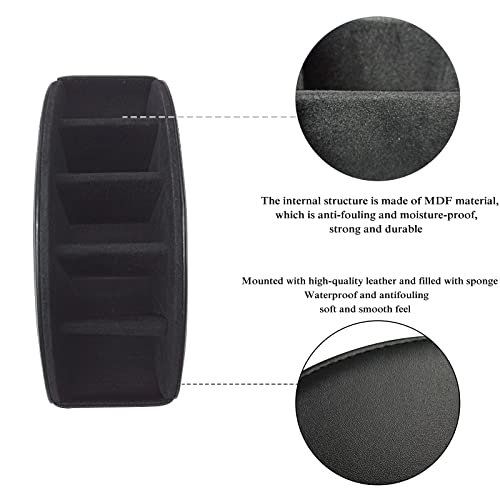


As an Amazon Associate we earn from qualifying purchases. Product prices and availability are accurate as of the date/time indicated.

HOTEC 6 Pack Magnetic Remote Control Holder Wall Mount, Upgraded No Drill Self-Adhesive TV Remote Organizer, Universal Storage for TV, Fan, AC, Media & RV Accessories (Black, Grey, White)
As an Amazon Associate we earn from qualifying purchases. Product prices and availability are accurate as of the date/time indicated.
Top Storage Options for Remote Teams Reviewed
Google Workspace Business Standard
Google Workspace Business Standard is a cloud storage option with 2 TB per user, up to 300 users, shared drives and version history, and a price of $10 to $15 per user per month. It has a simple interface, good collaboration, and a good value. It is a good choice if you want the best storage for remote teams with a proven Google design.
Dropbox Business Standard
Dropbox Business Standard is a cloud storage option with 5 TB per team, 3 or more users, shared folders and version history, and a price of $15 to $20 per user per month. It has a simple interface, good file sync, and a good value. It is a good choice if you want a Dropbox option with simple sharing.
Microsoft 365 Business Standard, OneDrive
Microsoft 365 Business Standard, OneDrive is a cloud storage option with 1 TB per user, up to 300 users, SharePoint and version history, and a price of $10 to $15 per user per month. It has Office apps, good collaboration, and a good value. It is a good choice if you want a Microsoft option with Office apps included.
Synology DiskStation DS223j NAS, Diskless
The Synology DiskStation DS223j NAS, Diskless is a NAS device with up to 36 TB with drives, a small team size, a two-bay RAID 1 design, and a price of $150 to $200 for the device without drives. It has a simple interface, good backup, and a good value. It is a good choice if you want a Synology NAS with a low price for a small team, but add the cost of hard drives.
QNAP TS-233 NAS, Diskless
The QNAP TS-233 NAS, Diskless is a NAS device with up to 36 TB with drives, a small team size, a two-bay RAID 1 design, and a price of $150 to $200 for the device without drives. It has a simple interface, good backup, and a good value. It is a good choice if you want a QNAP NAS with a low price for a small team.
Box Business Plan
The Box Business Plan is a cloud storage option with unlimited storage, 3 or more users, admin controls and version history, and a price of $15 to $20 per user per month. It has strong admin controls, good security, and a good value. It is a good choice if you want a Box option with unlimited storage and strong controls.
Buying Guide: How to Choose the Best Storage for Remote Teams
Start with your team size, your file types, and your budget. If you have a small team of 3 to 10 people, a cloud plan such as Google Workspace Business Standard is a good choice, because it is easy to set up and does not need hardware. If you have a team that works with large video files, a plan with 2 TB per user or more is a good choice. If you want to keep your files on your own hardware, a NAS such as the Synology DS223j is a good choice, because it gives you local control.
Next, check capacity, access, and security. Storage with at least 1 TB per user is a good choice for most teams, while storage with 2 TB per user is better for large files. Storage with user permissions is essential, because it lets you control who can edit or delete files. Storage with two-factor authentication and encryption is better than storage without, because it protects your files.
Check your budget, your use, and your future. Cloud storage for remote teams typically costs $10 to $20 per user per month. A plan from $10 to $15 per user per month, such as Google Workspace or Microsoft 365, offers a good way to start. A plan from $15 to $20 per user per month, such as Dropbox Business or Box Business, offers more storage or controls. A NAS device from $150 to $200, plus drives, offers a one-time cost for local storage.
Finally, do not choose storage based only on price or capacity. Storage without version history can lose files if someone overwrites them, even if it is cheap, while storage without a backup can lose all your files if it fails, even if it has a large capacity. Choose storage with version history, with user permissions, and with a backup plan. Test your storage with a small team first, with a few shared folders, and check that everyone can access files from their location before you move all your files.
How to Set Up Storage for a Remote Team
To set up storage for a remote team, first choose your storage option, with a plan that fits your team size and file types, and create accounts for each team member, with two-factor authentication turned on. Create shared folders, with a clear naming system, such as Projects, Clients, and Admin, and set permissions for each folder, with edit access only for team members who need it. Upload your existing files, with a backup copy kept separately, and turn on version history. Train your team on how to share files, with links that expire, and how to restore a file from version history. Check your storage usage every month, and add storage or archive old files when you approach your limit.
Frequently Asked Questions
What is the best storage for remote teams?
What is the best storage for remote teams depends on your team size and budget. Cloud storage with 2 TB per user, shared drives, and version history, such as Google Workspace Business Standard at $10 to $15 per user per month, is a good choice for most small teams, because it is easy to set up and collaborate. A storage option with a lower price per user, such as Microsoft 365 Business Standard at $10 to $15 per user per month, is also good, especially if you use Office apps. Choose a plan with permissions and version history.
Should I choose cloud storage or a NAS for my remote team?
Should you choose cloud storage or a NAS for your remote team, it depends on your needs. Cloud storage, such as Google Workspace, is better if your team works from different locations, because anyone can access files from anywhere with an internet connection. A NAS, such as the Synology DS223j, is better if you want to keep your files on your own hardware and have fast local access, but it needs a stable internet connection for remote access and a backup. Choose cloud for distributed teams, and NAS for a small office with local files.
How much storage does a remote team need?
How much storage a remote team needs depends on its file types. A team that works with documents and spreadsheets may need only 1 TB per user, while a team that works with photos and video may need 2 TB per user or more. A small team of 5 people with 1 TB per user has 5 TB total, which is enough for most documents. Check your current file usage, with your existing storage, and choose a plan with room to grow. Archive old projects to free space.
How do I keep remote team files secure?
How you keep remote team files secure is by using strong passwords, turning on two-factor authentication for all accounts, and setting permissions so each person can access only the folders they need. Use encryption, with your storage provider, and do not share files with public links that never expire. Back up your files, with a second copy in a different location, and check your audit logs regularly to see who changed files. Train your team not to share passwords and to report phishing emails.
Related guides
- Best AAA Batteries for Office Remotes in 2026: AAA Batteries for Office Remotes
- Best Budget Tablet for Work Under 100 in 2026: Budget Tablets for Work Under $100, Office Work, and Productivity
- Best Gimbal for Office Vlogging in 2026: 7 Gimbals for Office Vlogging That Keep Your Video Smooth, Stable, and Professional in the Office
- Best Budget NAS Dust Filter for Maintenance in 2026: 7 Budget NAS Dust Filters for Maintenance With Clear Airflow, Simple Install, and Easy Use for NAS
More from Amazon
Programs that pair well with the guide above. Offers and eligibility are set by Amazon and may change.
Free shipping on eligible items, Prime Video and more. Eligible new members can start with a free trial.
Start a Prime free trialAd-free music streaming. Eligible new subscribers can start with a free trial.
Try Music Unlimited freeA Prime membership for ages 18-24 with a trial period. Eligibility is set by Amazon.
See Prime for Young AdultsAudiobooks and podcasts to listen to on the go. Eligible new members can start with a free trial.
Try Audible freeAs an Amazon Associate we earn from qualifying purchases.

Write Your Review
No reviews yet. Be the first to share your experience!