
What's inside
- How to Choose Webcam for Office Lighting: The Three Conditions
- Quick Comparison: How to Choose Webcam for Office Lighting Models
- Detailed Reviews: How to Choose Webcam for Office Lighting Picks
- Buying Guide: How to Choose Webcam for Office Lighting Step by Step
- Frequently Asked Questions About How to Choose Webcam for Office Lighting
As an Amazon Associate I earn from qualifying purchases. This post may contain affiliate links at no extra cost to you.
Learning how to choose webcam for office lighting conditions starts with a truth the specification sheet hides: the same webcam can make you look broadcast-ready in one office and like a witness protection interview in another, because a webcam is not really a camera purchase, it is a light-gathering purchase. Sensor size, lens aperture, and the intelligence of its auto-exposure and white balance decide how it copes with the three office lighting situations that cover almost every working life: the bright window that turns a face into a silhouette, the dim room lit by one warm ceiling bulb that turns skin orange and grainy, and the mixed modern office, cool overhead panels, a warm desk lamp, and a monitor’s glow, that confuses cheaper cameras into constant hunting. This guide explains how to diagnose your own lighting first, then compares real, currently sold webcams from Logitech, Elgato, Razer, OBSBOT, and Anker that are built to survive each condition, with the settings and the inexpensive lighting fixes that matter as much as the camera.
Diagnose before you buy, in one meeting. Sit where you work, at your worst meeting hour, and look at your current camera’s picture honestly. If your face is dark against a bright background, your problem is backlight and dynamic range. If your picture is grainy, smeared, and yellow, your problem is too little light reaching too small a sensor. If your colour shifts as clouds pass or lamps warm up, your problem is white balance. Each problem has a camera answer in the table below, and each also has a room answer, turning your chair so the window lights your face instead of your back is worth more than any camera in this guide, and a modest desk light placed correctly outperforms a sensor upgrade in a dark room. The professional method is to fix the room first with the free and cheap moves, then buy the camera whose stated strengths cover what the room cannot fix.
Prices are typical retail ranges, and specifications, resolution, sensor and lens details where makers state them, field of view, and lighting features, are each maker’s stated details for the current version, so confirm them on the exact listing before you buy, because several of these families span multiple generations under one name.
Our Top Picks
How to Choose Webcam for Office Lighting: The Three Conditions
Bright Windows and Backlight: Dynamic Range Decides
The window office is the promotion that ruins your video. A camera metering for the bright background exposes the window correctly and renders you as a dark shape; a camera metering for your face blows the window to white and may still hunt between the two as you move. The camera qualities that answer it are a larger sensor with better dynamic range in the makers’ stated terms, face-priority metering and exposure in the camera’s software, and HDR modes on the models that offer them in their makers’ terms. The room answers are stronger and should be applied first: sit facing the window rather than with it behind you wherever the desk allows, or at ninety degrees to it with a curtain or blind softening the side it strikes, and if the window must stay behind you, close the blind for important calls and light your face with a desk light, because no webcam in this guide defeats direct midday sun through glass unaided, and the ones that cope best are coping, not conquering.
Dim Rooms and Warm Bulbs: Sensor Size and Aperture Decide
Low light is where webcam classes separate physically. A small sensor behind a narrow lens gathers little light, so the camera raises its electronic gain and its exposure time, producing the grain, the smearing when you move, and the watercolour skin of the classic bad call. A larger sensor, a brighter lens, stated as a lower f-number in the makers’ specifications, and modern low-light processing are the genuine cures, and they are exactly what the premium rows of the table sell. The room cure is again disproportionately effective: a single desk light, a small LED panel or a shaded lamp placed in front of you and slightly above eye level, at a neutral colour temperature where the lamp allows a choice, gives a modest camera more light to work with than a flagship receives in a dark room. Judge every camera claim about low light by asking what it does with a face lit by one ceiling bulb, because that is the test your office will actually set it.
Mixed Light and Colour: White Balance and Control Decide
The modern office mixes colour temperatures, daylight from a window at one side, warm lamps, cool ceiling panels, and a monitor, and a webcam’s auto white balance can chase that mixture visibly, shifting your skin from pink to grey as a cloud passes. The cameras that handle it best offer, in their makers’ software, white balance that can be locked at a chosen value, exposure that can be locked once it is right, and a picture you can tune and save rather than renegotiate on every call. That software control is a professional feature disguised as a settings page, and for a worker whose lighting is mixed and unchangeable, an office you cannot rearrange, a hot desk you do not own, it may matter more than resolution. Resolution itself ranks last in this guide’s order for office calls: a well-lit 1080p picture reads as more professional than a poorly lit 4K one on every platform your colleagues use, because the platforms compress the stream and the light survives compression better than the pixels do.
Quick Comparison: How to Choose Webcam for Office Lighting Models
| Model | Key Specs in Maker’s Terms | Lighting Strength | Typical Price Range | Rating |
|---|---|---|---|---|
| Logitech MX Brio class | 4K, larger sensor class and AI image features in maker’s terms, adjustable field of view | Best all-round office light handling, strong in dim and mixed light | $180 – $220 | 4.7 / 5 |
| Elgato Facecam Pro class | 4K60 class, large sensor in maker’s terms, manual controls through maker’s software | Best control for fixed, difficult lighting, studio-style setup | $280 – $330 | 4.6 / 5 |
| Razer Kiyo Pro class | 1080p with adaptive light sensor in maker’s terms, wide field options | Built for low light, sensor adjusts to room brightness | $120 – $200 by version | 4.5 / 5 |
| OBSBOT Tiny 2 class | 4K, AI tracking and gimbal in maker’s design, large sensor class claims | Best for presenters who move, tracking keeps face exposed and centred | $280 – $350 | 4.5 / 5 |
| Logitech Brio 4K class | 4K, HDR and RightLight class features in maker’s terms, adjustable field of view | Best established answer to window backlight | $160 – $210 | 4.6 / 5 |
| Anker PowerConf C200 class | 2K class, built-in microphones, field of view options in maker’s terms | Best value for ordinary office light | $50 – $80 | 4.3 / 5 |

yAyusi Dual-lamp Video Conference Lighting, LED Streaming Light with Remote and Touch Control, Zoom Lighting for Computer,Webcam Laptop Monitor Ring Light for Video Calls/Zoom Meetings/Video Recording


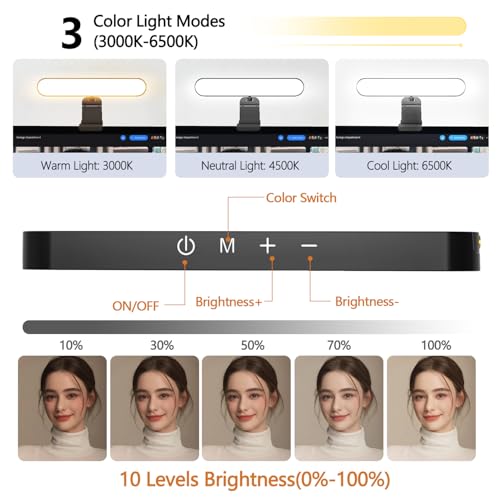

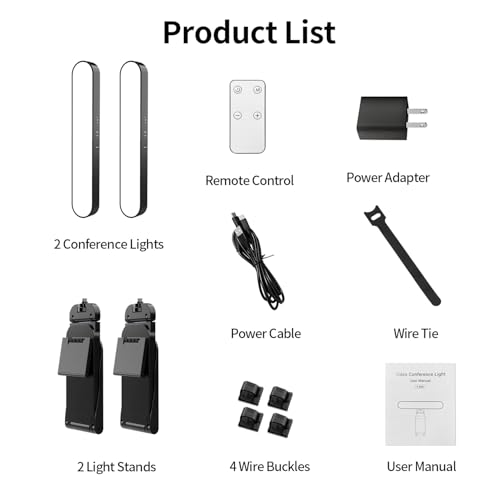
As an Amazon Associate we earn from qualifying purchases. Product prices and availability are accurate as of the date/time indicated.

Evershop Ring Light for Laptop Desk Clip On,Small Computer Video Conference Lighting with Stand for Phone/Webcam/Monitor,5" Portable Mini LED Selfie Light Desktop for Zoom Meeting/Video Call/Recording
As an Amazon Associate we earn from qualifying purchases. Product prices and availability are accurate as of the date/time indicated.
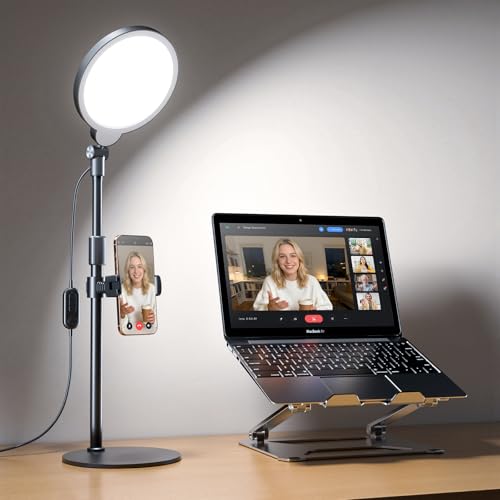
Desk Ring Light with Stand for Computer, 30 Modes Video Conference Lighting | Adjustable Desk Light for Video Recording, Zoom Lighting for Computer, Webcam, Podcast, Calls, Home Office, CRI 97.8
As an Amazon Associate we earn from qualifying purchases. Product prices and availability are accurate as of the date/time indicated.
Resolutions, sensors, fields of view, and software features are each maker’s stated specifications for the current version and differ between the generations inside each family name, particularly the Razer and Logitech lines, so verify the exact model. Price ranges are typical retail ranges and vary by retailer and promotion. Ratings are editorial ratings for office lighting specifically: dynamic range and backlight handling, low-light cleanliness, white balance and exposure control, and value for a working office.
Detailed Reviews: How to Choose Webcam for Office Lighting Picks
1. Logitech MX Brio Class – Best Webcam for Office Lighting Overall
The MX Brio class is the current all-round answer because it attacks office lighting on every front this guide has named: a larger sensor class than the mainstream webcam for dim rooms, image processing in its maker’s terms that holds a face correctly against ordinary backlight, and Logitech’s software for locking and tuning the picture once your room is understood. It is the camera for the worker whose lighting varies through the day, window in the morning, lamps by the evening meeting, and who wants one purchase to cope with all of it without a settings ritual. Its price is the premium tier’s, and divided across the years of daily calls it is the least expensive professionalism in this guide.
2. Logitech Brio 4K Class – Best Webcam for Office Lighting With a Bright Window
The original Brio class built its reputation on exactly the window problem: HDR and Logitech’s RightLight class processing in its maker’s terms, metering that privileges the face, and a field of view that can be narrowed to cut a bright background out of the frame’s arithmetic entirely, which is the cleverest trick in this guide, because a camera cannot be backlit by a window it cannot see. For the window office that cannot be rearranged, a rented desk, a glass-walled room, it remains a first-rank answer, and its long production run means its behaviour in every meeting platform is a known quantity.
3. Elgato Facecam Pro Class – Best Webcam for Office Lighting You Control Manually
The Facecam Pro class is the studio instrument: a large sensor in its maker’s terms, 4K at high frame rates in its stated specification, and, decisively, manual control through Elgato’s software of the exposure, white balance, and picture settings that automatic cameras keep renegotiating. In a fixed office with fixed, difficult light, a streamer-grade home studio, a recording corner, the correct method is to set it once, lock it, and never think about it again, and this is the camera built for that method. It asks more of its owner in setup and gives back the most stable picture in the guide, which is the professional’s trade in every category.
4. Razer Kiyo Pro Class – Best Webcam for Dim Office Lighting
The Kiyo Pro class was designed around the dim room: an adaptive light sensor in its maker’s terms that adjusts the camera’s sensitivity to the room’s actual brightness, on a 1080p specification that spends its budget on light rather than pixels, which this guide’s introduction argues is the right spend for office calls. In a basement office, a north-facing room, or an evening-shift life, it produces the clean, un-smeared picture its class promises. Check the exact version, because the family spans models, and pair it with even a modest desk light to move its picture from good to effortless.
5. OBSBOT Tiny 2 Class – Best Webcam for Office Lighting for Presenters
The Tiny 2 class adds movement to the lighting answer: a motorised gimbal and AI tracking in its maker’s design that keep your face centred and correctly framed as you stand, gesture, and work at a whiteboard, with a sensor class in its maker’s terms that handles ordinary office light well. For teachers, trainers, and presenters, the tracking solves the problem that defeats a fixed camera entirely, the subject leaving the good light and the frame together. Its price and its moving parts suit a dedicated presenting setup rather than a general office desk, and in that setup it has no direct rival here.
6. Anker PowerConf C200 Class – Best Value Webcam for Office Lighting
The C200 class is the value answer for the office whose lighting is merely ordinary: a 2K class picture, sensible fields of view in its maker’s terms, and built-in microphones that complete a laptop upgrade in one purchase, at a price that equips a whole team’s home offices for one premium camera’s cost. It will not defeat a hard backlight or a dark room, and this guide does not pretend otherwise; paired with the free room fixes, facing the light, a desk lamp for evening calls, it produces a perfectly professional picture in the conditions most offices actually have.
Buying Guide: How to Choose Webcam for Office Lighting Step by Step
Fix the Room First: Position, Blind, and One Light
Spend nothing until the free fixes are done. Turn the desk or the chair so the main window lights your face from the front or the side, never from directly behind where the room allows any choice at all. Fit or use the blind for the worst hour rather than suffering it daily. Then add the one light that changes everything: a small LED panel or a shaded desk lamp in front of you, slightly above eye level and a little to one side, at a neutral colour temperature if the lamp offers a choice, in the 4000K to 5000K region of common lamp ranges, far enough away to be soft and close enough to matter. Test the result on your current camera in a recorded test call, because a surprising share of readers will discover at this step that their lighting problem is solved and the camera they need is the value row, bought for its other virtues.
Set the Camera Once: Exposure, White Balance, and Field of View
With the chosen camera installed, configure it as a fixed instrument. Frame with the narrowest field of view that includes your head, shoulders, and gestures, because every degree of extra room in the frame is background the exposure must negotiate and clutter your colleagues must read. Set exposure for your face in your worst regular hour, then lock it in the maker’s software where locking is offered, and do the same with white balance once the colour looks true against a white sheet of paper held beside your face in a test recording. Turn off any beauty filtering your platforms apply by default if professionalism is the aim, position the camera at eye level on the monitor you look at, because a camera below the screen films a chin and a ceiling for every camera in this guide equally, and save or note the settings, because a camera reset by an update should be a two-minute restoration, not a rediscovery.
Test in the Platforms You Actually Use
Verify the result where it will be judged: record a test in each platform your work uses, at your worst hour, and watch it as a colleague would, on a laptop, at the size the meeting window actually shows. Platforms differ in how they treat resolution, HDR, and frame rate in their current implementations, and a camera’s finest mode is sometimes not the one a given platform accepts, which the maker’s compatibility notes and a five-minute test reveal better than any specification. Check the microphone while you are there, because a lighting guide’s camera still carries your voice, and the built-in microphones in this table range from adequate to the reason a headset joins the order. Then put the whole arrangement on the calendar for a seasonal check, because office light is a moving target, the winter afternoon is not the summer one, and the webcam chosen and set by this guide’s method adapts with a blind, a lamp, and a locked setting rather than a replacement.
Frequently Asked Questions About How to Choose Webcam for Office Lighting
How do I choose a webcam for my office lighting?
Diagnose your lighting first: dark against a bright window means you need dynamic range and face-priority metering, Logitech Brio or MX Brio class; a grainy, yellow picture in a dim room means you need a larger sensor and a brighter lens, Razer Kiyo Pro or MX Brio class; shifting colours in mixed light mean you need lockable white balance and exposure, Elgato Facecam Pro class. Fix the room’s free problems first, face the light and add one desk lamp, then buy the camera whose stated strengths cover what remains.
Why do I look dark on camera even in a bright office?
Because the brightness is behind you. Your camera meters the whole frame, the bright window dominates it, and your face, in the window’s shade by comparison, is exposed as a silhouette. Turn so the window faces you or sits to your side, narrow the camera’s field of view to exclude the window where the model allows, choose a camera with HDR and face-priority metering in its maker’s terms, or close the blind and light your face with a desk lamp for important calls. Every one of those works; the camera alone, unaided, only copes.
Is 4K worth it for office video calls?
For the calls themselves, usually not decisive: meeting platforms compress the stream, and colleagues see a well-lit 1080p picture as more professional than a poorly lit 4K one. A 4K camera earns its price in this guide for other reasons, its larger sensor and better processing improve the lighting performance that does matter, and its resolution helps if you record, present detail, or crop the frame digitally. Buy 4K for the sensor and the software that come with it, as in the MX Brio and Facecam Pro classes, not for the number on the box.
What is the cheapest way to look better on office video calls?
Rearrange the light before replacing the camera. Face the window or sit at ninety degrees to it, add one desk lamp in front of you and slightly above eye level, raise the camera to eye level, and narrow its field of view to your head and shoulders. That sequence, costing a lamp at most, improves any camera more than a model upgrade improves a bad arrangement. If a purchase follows, the Anker PowerConf C200 class in this guide is the value step, and the money saved against a flagship is better spent on the lamp and a headset.
Related guides
- Best AAA Batteries for Office Remotes in 2026: AAA Batteries for Office Remotes
- Best Budget Tablet for Work Under 100 in 2026: Budget Tablets for Work Under $100, Office Work, and Productivity
- Best Gimbal for Office Vlogging in 2026: 7 Gimbals for Office Vlogging That Keep Your Video Smooth, Stable, and Professional in the Office
- Best Budget NAS Dust Filter for Maintenance in 2026: 7 Budget NAS Dust Filters for Maintenance With Clear Airflow, Simple Install, and Easy Use for NAS
More from Amazon
Programs that pair well with the guide above. Offers and eligibility are set by Amazon and may change.
Free shipping on eligible items, Prime Video and more. Eligible new members can start with a free trial.
Start a Prime free trialAd-free music streaming. Eligible new subscribers can start with a free trial.
Try Music Unlimited freeA Prime membership for ages 18-24 with a trial period. Eligibility is set by Amazon.
See Prime for Young AdultsAudiobooks and podcasts to listen to on the go. Eligible new members can start with a free trial.
Try Audible freeAs an Amazon Associate we earn from qualifying purchases.

Write Your Review
No reviews yet. Be the first to share your experience!