
What's inside
- How to Choose Data Transfer Cable for Office PCs by Task and Desk
- Quick Comparison: How to Choose Data Transfer Cable for Office PCs Models
- Detailed Reviews: How to Choose Data Transfer Cable for Office PCs Picks
- Buying Guide: How to Choose Data Transfer Cable for Office PCs, Step by Step
- Data Transfer Cables Worth Keeping in Your Kit
- Frequently Asked Questions About How to Choose Data Transfer Cable for Office PCs
As an Amazon Associate I earn from qualifying purchases. This post may contain affiliate links at no extra cost to you.
Learning how to choose data transfer cable for office PCs begins with the most expensive small truth in modern computing: a cable’s plug tells you almost nothing about the cable. Two USB-C cables can sit in the same drawer, identical to an eye and a hand, one of which will move a folder of drawings in seconds, charge a laptop at its full parish, and carry a monitor’s signal, while the other moves the same folder at a pace a coffee can outlast, charges at a whisper, and carries no display at all, because the difference between them is not in their ends. It is in their wiring, their chips, their rating, and their intended parish, none of which a connector’s shape is obliged to announce. An office lives inside that truth daily. Its PCs move backups, hand projects between desks, dock to monitors and networks through a single cable, copy a departing colleague’s whole working life to a drive, and charge from whatever cable the last person left, and its cable failures are therefore rarely dramatic. They are slow, deniable, and charged to other accounts: a transfer blamed on a drive, a dock blamed on a laptop, a morning blamed on a network, each of which was, on examination, a cable asked to perform a parish it was never built for. This article teaches an office to buy, label, and keep its cables as infrastructure rather than as string. It compares the real cable families of the established makers — Anker, Belkin, Cable Matters, StarTech, Ugreen, and Apple in its Thunderbolt parish — across USB-C, Thunderbolt, USB-A legacy, and Ethernet, and it gives an office the only method that survives the drawer: match the cable’s stated data rate, charging wattage, and display parish to the slowest parish in the chain — port, cable, device — in writing, on a label, before the cable is allowed to join the office’s keeping.
The chain is the first concept, and an office should learn to see it whole. A data transfer happens across three parishes at once: the port on the first machine, with its standard and its generation in its maker’s specification; the cable, with its own stated rate, its length, and its construction; and the port and the device at the far end, a drive, a dock, a monitor, another PC. The chain moves at the speed of its slowest parish, and it performs only the functions every parish in it supports, which is why a flagship drive on a fine cable will crawl into an old port, why a fast port will not rescue a charging cable pressed into data service, and why a monitor will remain dark on a cable whose data parish is sound but whose display parish does not exist. An office buyer must therefore audit before they shop: the exact ports of the PCs and devices the cable will join, read from their makers’ specifications rather than from a connector’s silhouette, because a USB-C port may be a full Thunderbird of standards — data at its highest parish, charging, display in its alternate modes — or a modest data port wearing the same oval, and a USB-A port may be a current parish or a relic whose speed belongs to another decade. Write the audit down, desk by desk and device by device, in the office’s keeping, because it is the document every later cable decision will consult, and an office that has never written it will buy, as most offices do, a drawer of hope in assorted lengths.
USB-C is the modern parish and its divisions must be learned by name, because they share a plug and nothing else is guaranteed. A charging-first USB-C cable, in the parish that ships with a phone and fills every drawer, is built to carry power — at its stated wattage, which matters and which this article will honour in its own paragraph — and commonly carries data at the USB 2.0 parish, a speed suited to a keyboard’s conversation and ruinous to a backup’s. A full data USB-C cable, in the USB 10Gbps and 20Gbps classes in their makers’ stated terms, carries a drive’s and a dock’s work at the speeds an office’s files require, over lengths that shorten as speeds rise, because in this category length is not a convenience. It is a specification, and a long cable claiming a high parish should be read with a scepticism its maker can answer with a stated rate at its stated length. A Thunderbolt cable, in its generations’ stated parishes — Thunderbolt 4 and the Thunderbolt 5 parish now entering the market in its makers’ terms — is the office’s universal citizen: data at its generation’s full parish, charging at its stated wattage, display in its stated count and resolution, and a dock’s whole world on one lead, over a short and specified length that is the price of that universality. An office should buy Thunderbolt for its docks, its fast drives, and any desk where one cable must do everything, buy full data USB-C for its transfers and its peripherals, and buy charging cables, deliberately and labelled as such, for the places where power is the whole assignment, because each parish is a good cable in its own work and a small fraud in another’s, and the fraud is committed not by the cable but by the drawer that never told them apart.
Power deserves its own severity, because an office PC’s cable increasingly is its charger, and a wattage mismatch is a slow machine rather than a stopped one, which makes it the parish most likely to be misdiagnosed for a year. A cable’s stated charging wattage, and the presence in its parish of the marking its standard requires for the higher wattages in its makers’ terms, decides whether a laptop receives the power its own charger offers: a cable rated below a laptop’s parish will charge it slowly, hold it level under load, or, in the parish every travelling office worker knows, discharge it politely while plugged in. Match the cable’s wattage to the largest machine it will serve, with margin, buy that parish from an established maker whose stated figure can be filed, and treat an unmarked, unrated cable from an unknown parish as a phone’s overnight guest and never as a workstation’s supply, because a cable is also an electrical object, and its cheapness, where it exists, was purchased somewhere inside it. Display is the third parish and the one a dock’s owner must interrogate by name: a cable that carries a monitor does so in a stated mode and at a stated count and resolution in its maker’s terms, a Thunderbolt cable carries its generation’s stated parish, a full data USB-C cable may or may not carry a display at all, and a charging cable, whatever its plug, carries a screen’s signal in no parish known to this article. An office desk built on one cable — power, data, network through a dock, and a monitor or two — is therefore a Thunderbolt purchase or a dock maker’s stated parish, tested whole at installation, and any substitution later must repeat that test, because a desk that fails by one dark monitor on a Monday was not betrayed by its dock. It was betrayed by a cable that was only almost the same, introduced, unlabelled, on a Friday.
Ethernet and the legacy parish complete an office’s map, because a PC office still lives, in its fastest and most honest moments, on a wire. A direct PC-to-PC transfer, a migration, a backup to a network parish, and a dock’s network all pass, in many offices, over Ethernet, and its cable classes — Cat6 and Cat6a in the modern office parish, in their makers’ stated terms — should be bought by the network they will serve, at lengths and in a construction a run requires, from an established maker whose stated class can be trusted, because a network, like a USB chain, moves at its slowest parish and an unlabelled cable of an older class in a modern run is a ceiling nobody remembers installing. A crossover parish that older direct connections once required has been absorbed, in the modern parish, by the ports themselves in their stated designs, and an office performing a direct migration should follow its devices’ and its software’s own current guidance rather than a folklore of special cables. Legacy USB-A cables keep their honest parish — the printer, the scanner, the drive enclosure, the device whose port has not changed in a decade — and should be bought in their stated speed class for the device they serve, replaced when their connectors loosen, and never adapted into a modern parish by a chain of adapters whose total is a slower, hotter, and less certain cable wearing three costumes. Adapters themselves, in an established maker’s stated parish, are legitimate single steps between two known parishes, and an office should own the few it needs, labelled with their direction and their limits, because an adapter whose parish is unknown is a cable whose specification is a rumour. This guide compares six real, currently sold cable options for office PCs: Anker’s PowerLine and data parish, Belkin’s BoostCharge and Thunderbolt classes, Cable Matters’ USB-C, Thunderbolt, and Ethernet parish, StarTech’s office and dock classes, Ugreen’s data and charging classes, and Apple’s Thunderbolt parish, each judged on a stated parish honestly delivered, a label an office can file, and a year’s service in a drawer that respects it.
Our Top Picks
How to Choose Data Transfer Cable for Office PCs by Task and Desk
The backup, migration, and drive desk: a full data cable, a length that tells the truth
For an office PC whose cable work is transfers — a backup drive, a migration between machines, a project handed across a desk — the correct purchase is a full data USB-C cable in the 10Gbps or 20Gbps class its ports can feed, or a Thunderbolt cable where the drive’s and the PC’s parish support it, in the shortest length the desk honestly needs, from an established maker whose rate is stated at that length. Such an office should test the finished chain once, on a real folder of its own work, timed, and record the result in the cable’s label parish, because a transfer chain verified is a backup that can be scheduled, while a transfer chain assumed is a backup that will be discovered, at a departure or a failure, to have been a hope with a deadline. Let the drive’s own supplied cable be kept with the drive, always, because a drive and its cable are a tested parish and a drive lent without its cable returns, in this article’s long observation, with a story.
The single-cable desk and the dock: Thunderbolt, bought as a system, substituted never
An office desk that docks — one cable for power, data, network, and display — should buy its cable as part of the dock’s system: a Thunderbolt cable of the generation the dock and the PC share in their makers’ stated parishes, at the length its standard specifies, with its wattage matched to the laptop it will feed. Such a desk should keep a second, identical cable in its drawer, bought with the first, because a dock cable’s failure is a desk’s whole failure and its spare should be a twin and not an experiment. Substitutions must be treated as installations, tested for every parish — a file moved, a monitor lit at its stated parish, a battery gaining under load — before the desk’s owner is allowed to trust them, because a single-cable desk has concentrated an office’s whole connectivity into one parish, and concentration, in cables as in finance, is a virtue only when its reserves are exact.
The shared, legacy, and network parish: Cat6 in the walls, A-cables labelled, adapters owned on purpose
An office whose PCs span generations should govern its shared cables as a small public works: Ethernet in the Cat6 and Cat6a parish in its runs and its patch leads, from a maker whose class can be filed, USB-A cables in their stated classes for the legacy devices they serve, and a small, owned set of adapters in established makers’ stated parishes, each labelled with the two parishes it joins and the functions it does not carry. Such an office should retire, without a hearing, any cable whose connector loosens, whose jacket splits, or whose parish no living person can state, because an unknown cable in a shared drawer is not a spare. It is a future misdiagnosis, stored at room temperature, and its retirement is the cheapest reliability an office can buy. Let the whole parish be reviewed when a PC or a dock is replaced, because a new machine’s ports rewrite the audit this article began with, and an office that files that audit will find its cable decisions, ever after, are lookups rather than arguments.
Quick Comparison: How to Choose Data Transfer Cable for Office PCs Models
| Model | Key Specs | Best For | Typical Price Range | Rating |
|---|---|---|---|---|
| Belkin Thunderbolt and BoostCharge Classes | Thunderbolt and USB-C classes by line as maker states, stated data, wattage and display parish classes, length classes in maker terms | Best data transfer cable for office PCs overall | $20 – $40 by line and length | 4.6 / 5 |
| Cable Matters USB-C, Thunderbolt, and Ethernet Parish | Cable classes by type as maker states, stated rate, wattage and class classes, length classes in maker terms | Best office range and Ethernet | $10 – $35 by type and length | 4.5 / 5 |
| Anker PowerLine Data and Charging Classes | USB-C classes by line as maker states, stated wattage and data classes, length and construction classes in maker terms | Best charging and desk cables | $12 – $30 by line and length | 4.5 / 5 |
| StarTech Dock and Office Cable Classes | Thunderbolt, USB and adapter classes by line as maker states, stated parish classes, length classes in maker terms | Best dock and adapter parish | $15 – $45 by type | 4.4 / 5 |
| Apple Thunderbolt Cable Parish | Thunderbolt classes as maker states, stated data, wattage and display classes in maker terms, length classes | Best for Thunderbolt docks | $29 – $39 by length class | 4.5 / 5 |
| Ugreen Data and Charging Classes | USB-C and USB-A classes by line as maker states, stated rate and wattage classes, length classes in maker terms | Best value range | $8 – $25 by line and length | 4.3 / 5 |
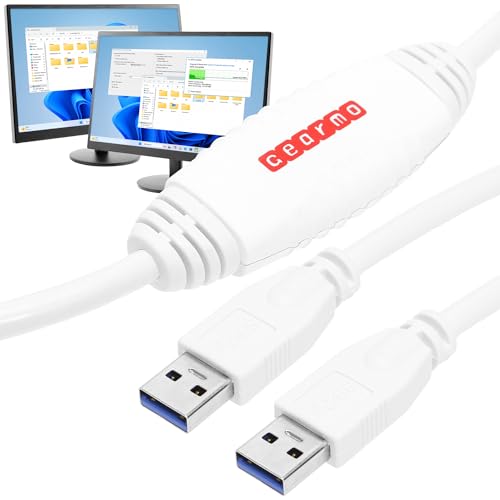
Gearmo PC to PC Data Transfer Cable - 6ft, Unlimited Uses, Built-in Software, No Installation - High Speed USB Data Transfer Between Computers - Supports Windows 11/10/8/7


As an Amazon Associate we earn from qualifying purchases. Product prices and availability are accurate as of the date/time indicated.
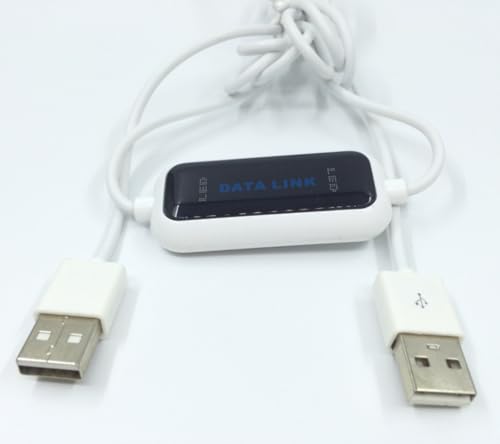
ELFJMZP USB File Transfer Cable 1.5m - Windows Plug and Play No Driver, Built-in File Manager, PC to PC Data Sync Only, Does NOT Support Keyboard/Mouse Sharing
As an Amazon Associate we earn from qualifying purchases. Product prices and availability are accurate as of the date/time indicated.
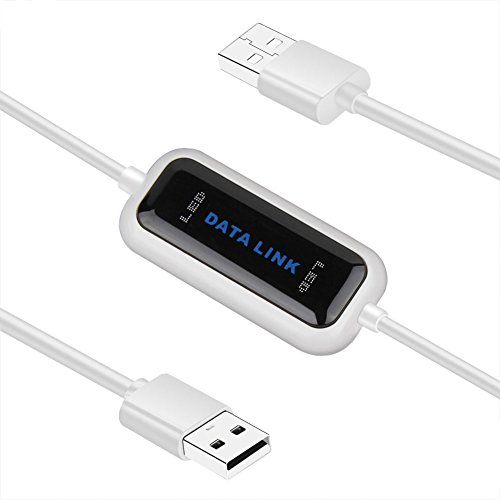
USB 2.0 High Speed Laptop USB to USB PC Data File Transfer Cable Link Direct Copy Between 2 Computers for XP,Vista,Windows7,8 (32/64 bit),win10


As an Amazon Associate we earn from qualifying purchases. Product prices and availability are accurate as of the date/time indicated.
Cable type and standard, stated data rate, stated charging wattage and any marking parish in the maker’s terms, display provision and its stated limits, length, and connector parish are each maker’s specification for the current exact cable, and the slowest parish in a chain of port, cable, and device governs the result, so every figure must be confirmed against your own PCs’ and devices’ stated ports before purchase. Prices are typical street ranges per cable as described. Ratings reflect office suitability: a stated parish delivered in a timed test, construction and connector that survive a shared drawer, lengths whose rates are stated honestly, labelling and documentation an office can file, and value across a working year of transfers, docks, and deadlines.
Detailed Reviews: How to Choose Data Transfer Cable for Office PCs Picks
1. Belkin Classes – Best Overall
Belkin’s Thunderbolt and USB-C classes lead because an office can file them: a stated data parish, a stated wattage, a stated display parish, in lines whose names an ordering parish can repeat without an incantation. For a mixed office of docks, drives, and laptops, that legibility is the product, and its cables are the drawer’s citizens.
Buy its Thunderbolt parish for the desks that dock and its data parish for the desks that transfer, labelled at both ends. A Belkin stock so governed will end the office’s oldest meeting, the one about why a fast thing is slow, because its answer will be written, in advance, on the cable itself.
2. Cable Matters Parish – Best Office Range
Cable Matters competes on the whole map in one maker’s keeping: USB-C and Thunderbolt for the desks, Ethernet in its stated classes for the network, and the lengths an office’s real geography requires. For an office standardising its cables, a single parish whose specifications can be filed together is an administrative virtue beyond any cable’s speed.
Let its Ethernet be bought by class for the network it will serve, in writing. A Cable Matters network so classed will never contain the ceiling nobody remembers installing, and its office, timing a transfer in a later year, will be able to acquit its cables in one glance at a label.
3. Anker PowerLine Classes – Best Charging and Desk
Anker’s PowerLine parish serves the desk’s daily parish — charging at a stated wattage, data in its lines’ stated classes, construction a shared drawer respects — with a clarity about which of its cables is a charging citizen and which is a data one that this article wishes were the industry’s law. For an office’s ordinary desks, it is the kindest stock.
Keep its charging and data lines in separate, labelled keeping, because its own honesty deserves an office’s. An Anker drawer so divided will charge a laptop at its parish and move a folder at its own, and the two parishes, respected, will never again be blamed for each other’s biography.
4. Apple Thunderbolt Parish – Best for Thunderbolt Docks
Apple’s Thunderbolt cables stand in this table as the reference parish for a docked desk in its ecosystem and beyond it: a stated generation’s whole citizenship — data, power, display — in lengths its standard specifies, behind a maker’s name an office can order without a meeting. For a Thunderbolt desk, it is the spare every drawer should hold.
Buy its twin when the desk is built, as this article’s dock counsel directs. An Apple cable so twinned will make a dock’s failure a thirty-second parish rather than a morning’s, and a desk restored in thirty seconds has purchased, in one spare cable, the cheapest insurance in this entire guide.
5. StarTech Classes – Best Dock and Adapter Parish
StarTech’s office parish serves the joins an office actually contains: dock cables, legacy connections, and adapters in stated parishes, for the PCs and devices whose generations span an office’s whole history. For an office that must connect what it owns rather than what a catalogue wishes it owned, it is the indispensable row.
Label every adapter with the two parishes it joins and the one it does not carry. A StarTech parish so labelled will connect a decade’s equipment without a single dark monitor being blamed on a dock, and its office will learn that an adapter, owned on purpose, is infrastructure, while one found in a drawer is a rumour with pins.
6. Ugreen Classes – Best Value Range
Ugreen’s data and charging classes close the table at a value an office can stock deeply, with stated rates and wattages in its lines’ terms that let a buyer choose a parish rather than gamble on one. For the shared drawer and the spare’s spare, that stated honesty at a budget price is the recommendation.
Let its value never be stocked unlabelled, because a cheap cable filed is worth a dear cable lost. A Ugreen stock so governed will give an office depth in every parish it needs, and depth, in a cable drawer, is the difference between a substitution that is a twin and one that is an incident.
Buying Guide: How to Choose Data Transfer Cable for Office PCs, Step by Step
Audit the ports, match the slowest parish, buy the stated cable at an honest length
Write down, for every PC and device the cable will join, its port’s standard and generation from its maker’s specification, the data rate the task requires, the wattage the largest machine needs, and any display parish a dock or a monitor demands, and buy a cable whose maker states every one of those figures for the exact cable at its exact length, because the chain will move at its slowest parish and perform only the functions all of them share. Prefer a Thunderbolt cable for a dock and a fast drive, a full data USB-C cable for transfers and peripherals, a labelled charging cable for power alone, and a stated Ethernet class for a network, from an established maker whose figures can be filed, and prefer the shortest length the desk honestly needs, because in the high parishes length is spent as speed. Price a cable against the hour it will save or waste across a year, and not against a drawer’s other string, because in an office a cable’s price is the smallest figure in its whole biography.
Label both ends, test the whole chain, keep a twin for every critical desk
Label every office cable at both ends on its arrival — its parish in plain words, data rate, wattage, display, and the desk or device it belongs to — because an unlabelled cable begins, on that day, its career as a future misdiagnosis. Test each critical chain whole, once, on the office’s real work: a folder timed, a monitor lit at its stated parish, a battery gaining under a load, a network moving at its class, and record the result where the audit lives, because a tested chain can be scheduled and a presumed one can only be discovered. Keep an identical spare for every cable whose failure stops a desk — a dock’s lead above all — bought with the original, and treat every substitution, however similar its silhouette, as a new installation with the same whole test, because a cable’s plug is its costume and its parish is its character, and an office must learn, as this article began, to hire by the second.
Retire the unknown, review at every machine change, and govern the drawer as infrastructure
Retire any cable whose connector loosens, whose jacket or strain parish fails, or whose specification no person in the office can state, and let its retirement be unceremonious and complete, because a drawer is a system and an unknown component is its fault line. Review the whole cable parish whenever a PC, a dock, a monitor, or a network parish changes, update the audit, and pass a sound retired cable, with its parish stated honestly, to the lighter duty it can still perform — a charging parish, a legacy device — labelled for its new and lesser office, never upward into a parish it cannot serve. How to choose data transfer cable for office PCs ends where it began, in a drawer that tells the truth: a port audited, a cable stated, a chain tested, a label at both ends — and any cable in this table, bought by that audit, kept by that label, and retired on that evidence, will let an office move its work at the speed its machines were built for, which is the whole and sufficient ambition of a piece of wire.
Data Transfer Cables Worth Keeping in Your Kit
A cable’s connector shape tells you little about its speed, so look for the stated data rate and wattage. These are solid options for moving files between office machines and drives.
Cable Matters 10Gbps USB-C Cable
A certified Gen 2 cable that keeps transfers fast between external drives and desktops. It is a good everyday choice when you want predictable speeds without hunting for specs.
As an Amazon Associate we earn from qualifying purchases at no extra cost to you.

UGREEN 240W USB-C Cable 10Gbps
Combines high data speed with generous charging capacity, so a single cable can feed a laptop and move large files. Useful with docks and external NVMe enclosures.

Anker 240W Thunderbolt-Compatible USB-C Cable
This one supports 40Gbps for Thunderbolt and USB4 gear. Pick it when you connect fast SSDs, monitors or docks and do not want the cable to become the bottleneck.

Aoybevty USB A to USB C 6.6ft Cable
The longer length reaches across a desk or into a rack, and the USB-A end suits older office PCs. A budget-friendly spare for drive backups.

Short, well-built cables usually perform best for drive work, while longer ones are better for docks and monitors. If a transfer runs slower than expected, swap the cable before blaming the drive, because an older USB 2.0-class cable hiding in a drawer of lookalikes is a common culprit in office setups. Label cables by speed so the slow ones do not end up connecting your fastest drive.
Frequently Asked Questions About How to Choose Data Transfer Cable for Office PCs
How do I choose a data transfer cable for office PCs?
Audit the ports first, from their makers’ specifications, then buy the cable whose stated parish covers the whole chain. Match its stated data rate to the task — a full data USB-C class for transfers, a Thunderbolt cable for a dock, a fast drive, and any desk where one cable must carry data, power, and display together — match its stated wattage, with margin, to the largest laptop it will charge, and confirm any display parish by name where a monitor is involved, at the shortest length the desk honestly needs, from an established maker in this table. Label the cable at both ends with its parish on arrival, test the finished chain on a real folder, a lit monitor, and a battery under load, and keep an identical spare for any cable whose failure stops a desk. A cable chosen by that method is infrastructure. One chosen by its plug is a guess with a connector.
Why is my USB-C transfer so slow when the cable looks identical to a fast one?
Because a USB-C plug is a shape and not a speed, and the cable behind it was most likely built for charging, carrying data in the USB 2.0 parish that serves a phone’s sync and a keyboard’s conversation and was never intended for a backup’s or a drive’s work. The chain also obeys its slowest parish, so a slow port or a slow device will produce the same symptom with a blameless cable, which is why this article directs an office to audit all three — port, cable, device — from their makers’ stated figures rather than diagnose by silhouette. Replace the parish that is limiting, with a full data or Thunderbolt cable in this table where the cable is the limit, label the charging cable for its own honest work, and time a real folder before and after the change, because a transfer, like any office claim, should be settled by a measurement and not by a meeting.
Is a Thunderbolt cable worth it over a regular USB-C cable for an office?
For a docked desk and a fast drive, yes, because a Thunderbolt cable is the one parish in this category that carries its generation’s whole citizenship on a single lead — data at its full stated rate, charging at its stated wattage, and display in its stated count and resolution — at a specified length an office can file, which is exactly the combination a single-cable desk and a professional drive require. For a peripheral, a modest transfer parish, and a charging assignment, a full data or a charging USB-C cable in its stated parish serves at a lower price and with a longer length’s freedom, and buying Thunderbolt for those desks purchases a universality they will never spend. Decide desk by desk, from the audit: the desks that dock and the drives that fly get Thunderbolt, the desks that merely connect get their stated parish, and every cable, in either parish, gets a label, because the two will meet in a drawer and only a label can keep their biographies apart.
What Ethernet and legacy cables should an office PC setup keep?
Ethernet in the Cat6 and Cat6a parish, in its makers’ stated classes, for its runs, its patch leads, and any direct or docked network parish whose speed the office actually uses, bought at honest lengths from an established maker and labelled by class, because a network moves at its slowest parish and an old unlabelled lead in a modern run is a ceiling installed by nobody. Legacy USB-A cables in their stated speed classes for the printers, scanners, and enclosures whose ports have not changed, replaced when a connector loosens, and a small, owned set of adapters in established makers’ stated parishes, each labelled with the two parishes it joins and the functions it does not carry. Retire anything whose class or parish no one can state. An office’s legacy keeping should be a museum with labels and a working parish, not a drawer in which three generations of cable conduct, unmarked, their slow and deniable sabotage of a modern desk.
Related guides
- Best Scanner for Office Small Offices in 2026: 7 Best Scanners for Office Small Offices With Clear Scan, Simple Use, and Easy Use for Scanner for Office Small Offices
- Best High End Monitor for Photo Editing in 2026: 7 Best High End Monitors for Photo Editing With Clear Colour, Simple Use, and Easy Use for High End Monitor for Photo Editing
- Best Budget Tablet for Work Under 100 in 2026: 7 Best Budget Tablets for Work Under 100 With Clear Work, Simple Use, and Easy Use for Budget Tablet for Work Under 100
- Best AAA Batteries for Office Remotes in 2026: AAA Batteries for Office Remotes
More from Amazon
Programs that pair well with the guide above. Offers and eligibility are set by Amazon and may change.
Free shipping on eligible items, Prime Video and more. Eligible new members can start with a free trial.
Start a Prime free trialAd-free music streaming. Eligible new subscribers can start with a free trial.
Try Music Unlimited freeA Prime membership for ages 18-24 with a trial period. Eligibility is set by Amazon.
See Prime for Young AdultsAudiobooks and podcasts to listen to on the go. Eligible new members can start with a free trial.
Try Audible freeAs an Amazon Associate we earn from qualifying purchases.

Write Your Review
No reviews yet. Be the first to share your experience!